
The ability to suggest additional suppliers for an RFP must be enabled by the planner. This feature will allow the Global Sales Office user to add properties and send the RFP on behalf of the planner.
This article contains the following topics:
Find RFPs Requesting Suggestions
The Suggest listing shows RFPs where the planner would like the GSO to suggest other properties and add them to the RFP.
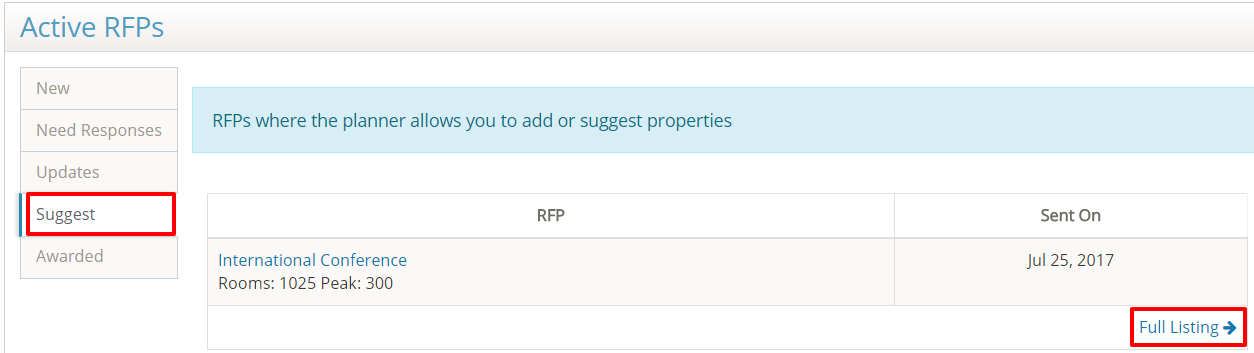
Select the RFP Name from the Suggest listing. The Suggest Properties option will appear when this option is enabled by the planner.
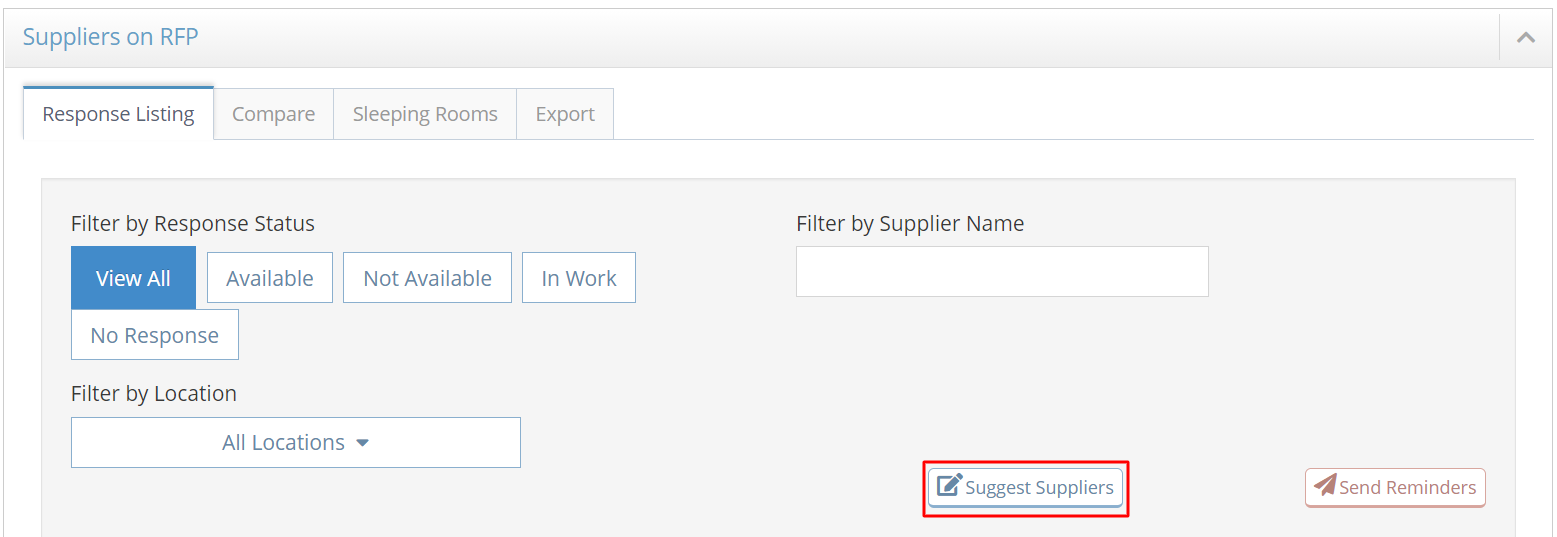
Select Find Suppliers to Add.

Use the Supplier Search page to find additional properties. The default search results will display your properties in the location(s) on the RFP.
Select + to RFP to add the property. The Sent icon indicates properties that were already sourced.
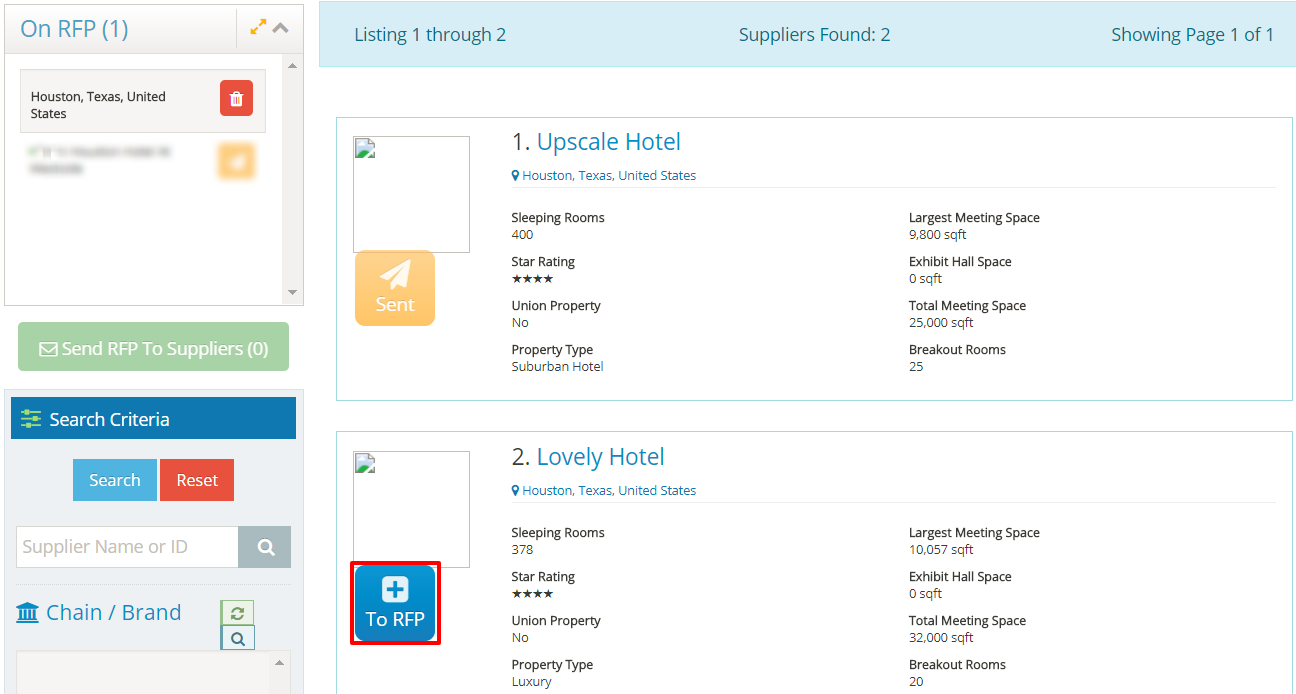
Use the Search toolbar to find other properties for the RFP.
 |
You can search by Supplier Use the + to RFP button
|
Select Send RFP To Suppliers when your selections are complete.
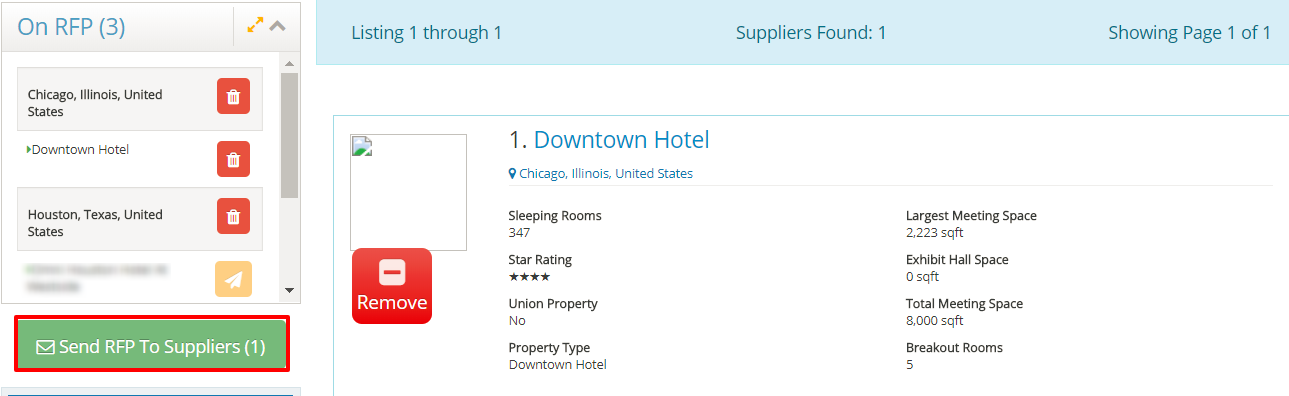
Select RFP Recipients and Send
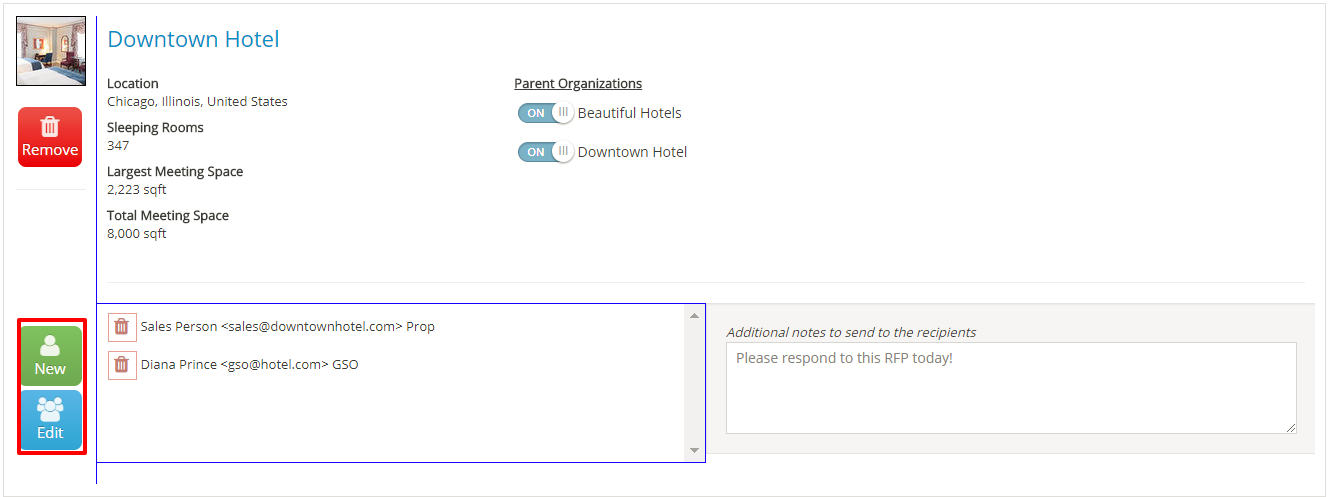
On the RFP Mailer page, select the recipients for the RFP. The default contacts will be the planner's GSO. Use the New Contact button to add a new recipient or the Edit Contact button to add an existing contact from the list.
The Email Form section contains the planner's default RFP email message for your review. Select Send RFP to Suppliers when complete.
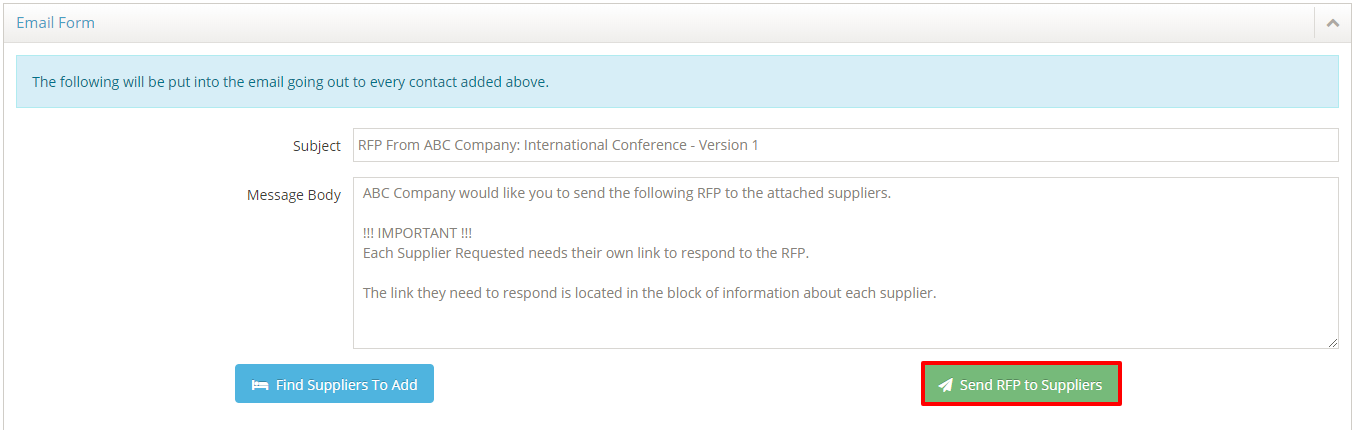
Each recipient will receive an email with the response link for their property. Return to the Suppliers on RFP section to view and manage the responses.
Comments
0 comments
Article is closed for comments.