
Now that you have completed the form in the SETUP Tab, below is the next step for setting up reports and records for your form.
REPORTS TAB
Use the NEW REPORT button to create your default report. It is important to designate one of the reports you create as the default report. This allows that report to always show in the RECORDS TAB. The other reports you create can be exported to Excel. (only one default report should be created)
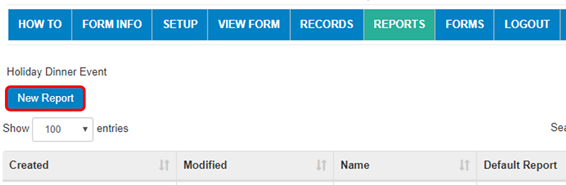
Steps to creating a Default Report, once you have clicked on NEW REPORT:
- Name your report
- Designate Default by selecting DEFAULT REPORT check box (shown in red below)
- SAVE AND CLOSE
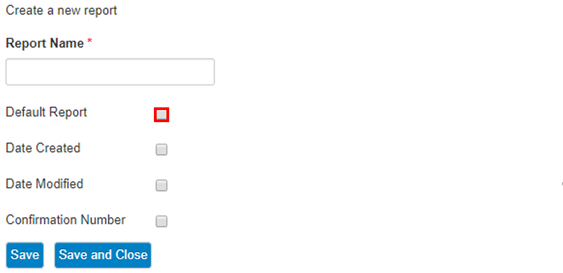
-
Then select the Edit Icon to the right of your new default report (circled in red)
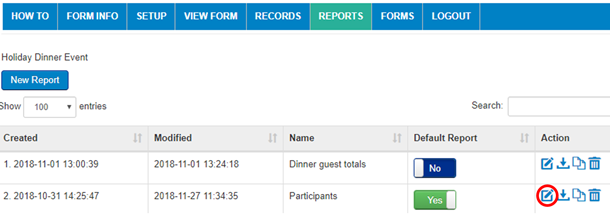
- Select which Report Columns you would like displayed in RECORDS tab
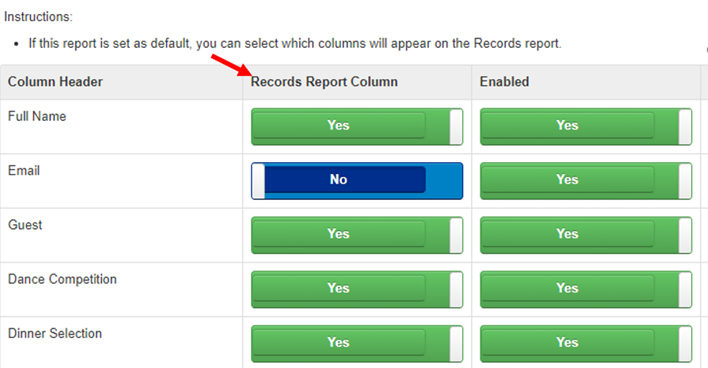
- Select which Report Columns you would like displayed in excel report you export by noting YES in the enabled column
- SAVE AND CLOSE
Here is the Records Tab displaying the above Default Report with fields designated by column list above: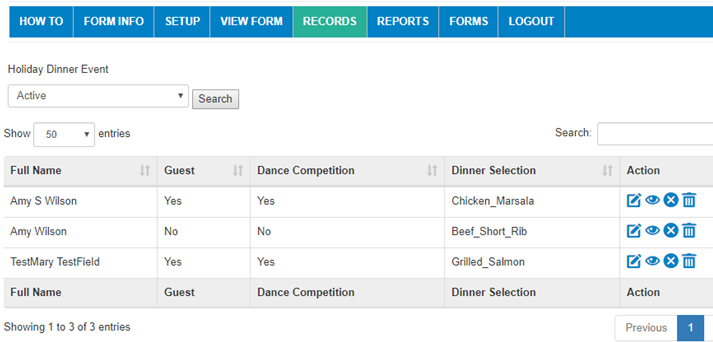
Once you have created your Default Report, you can go on to the next step - Create Custom Reports
Comments
0 comments
Article is closed for comments.