
Now that you have created the name for a NEW FORM, below is the initial step for setting up your form by completing the below Information. This can be edited throughout the creation of the form.
FORM INFO Tab
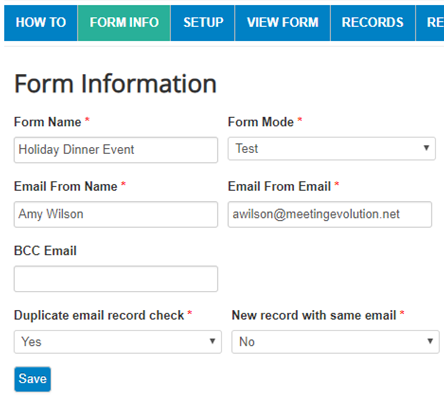
- FORM NAME - Enter Form name again
- MODE -
- TEST - allows user to delete form submission test records
- LIVE - takes away the ability to delete a form submission record to avoid losing data once there are legitimate submissions
- EMAIL FROM NAME - Usually Your name or the name you would like displayed on who is sending the confirmation email upon form submission
- EMAIL FROM EMAIL - email that will display when form confirmation is sent. Also will be the email that is sent an email reply from a form submitter
- BCC EMAIL - Enter an email address in this field if there is another point of contact that would like to be notified of form submissions
- DUPLICATE EMAIL RECORD CHECK -
- When YES is selected, a user cannot submit a second form with the same email address. They will be prompted with the following: "Sorry, this form is not setup to allow multiple records with the same email address." At the top of the page it also directs them to edit existing records: "The following record(s) are connected to the following email address. Click on "Edit" to update an existing record."
- When NO is selected, a user has no verification and can enter multiple form submissions creating multiple records with the same email address.
- NEW RECORD WITH SAME EMAIL -
- When YES is selected, a user can submit a second form with the same email address. They will be prompted at submission with the following to create a new record: "This form is setup to allow multiple records with the same email address. Please click on the "Create New Record With The Same Email Address" button at the bottom of the form." Note: when this feature is enabled, the Duplicate email record check should also be set to Yes.
- When NO is selected, a user cannot submit a second form with the same email address
- SAVE your entries and go on to the next step - Create Form Sections
Comments
0 comments
Article is closed for comments.