
Now that you have entered the required information in the INFO TAB, below is the first step for setting up your form to completion. Each Form Section has a section header description and contains the form fields within that section. For example, the Contact Information section would include name, address, phone number and email fields. Notice, the VIEW FORM tab allows you to view the form you are creating throughout the creation process.
SET UP TAB -> FORM SECTIONS
Begin creating Form Sections by clicking on the NEW SECTION button
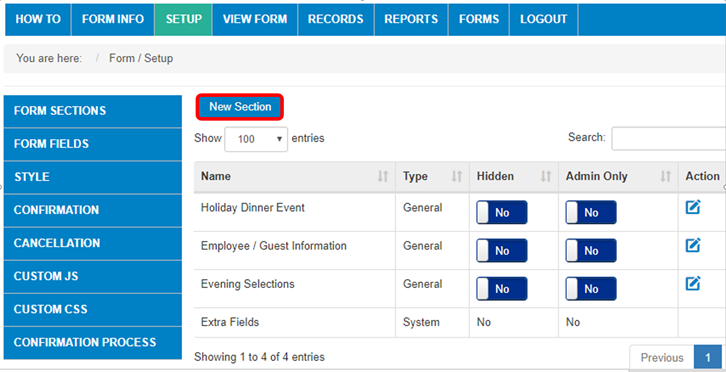
Now in the FORM SECTION MANAGEMENT
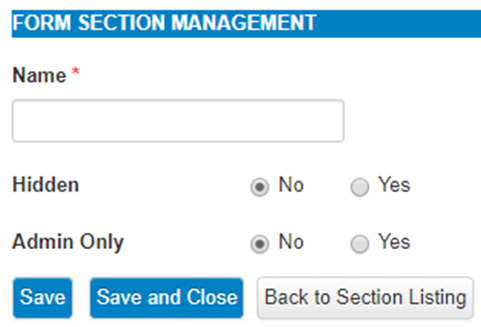
- Enter the SECTION NAME to display on Section within the Form
- Select Hidden - to keep section from being displayed on the form
- Select Admin Only - to allow Admin Users Only access to this section on the form
- SAVE AND CLOSE, then continue until all sections are complete
Once you have created all of your section names, you can go on to the next step - Create Form Fields
Comments
0 comments
Article is closed for comments.