
Now that you have created a default report that will export all data from all fields in your registration form, you can begin creating additional reports. These reports can be customized to any specification.
For Creating a Default Report, go to Creating a Default Report
Creating Custom Reports:
1. Go to REPORTS tab
2. Click on NEW REPORT
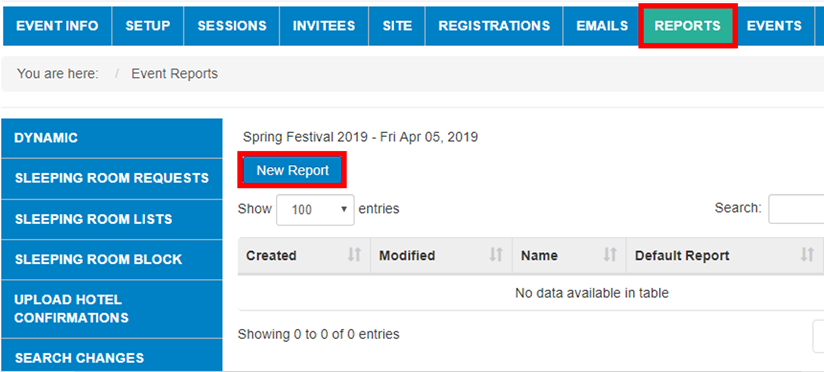
3. Name the Report in the REPORT NAME field, this one we will name "Rooming List Report".
4. Make sure NOT TO check the box for DEFAULT REPORT, as you should have already created one.
5. DATE CREATED, provides a column with the date a registrant submitted their registration and/or the date an invitee record was uploaded (if you are using the invitee feature in the system)
6. DATE MODIFIED, provides a column with the date a Registrant or Admin edited their registration record
7. CONFIRMATION NUMBER, provides a column with the Confirmation Number unique to each registrant that they can use to Edit their registration (if you are using the "Edit Registration" tab on your site)
8. Now click on SAVE
8. Now click on SAVE

Below you will see three columns:
1. Records Report Column - Do not use for Custom Reports - This is only used for the DEFAULT REPORT.
2. Enabled Column - This column is what is used for EVERY REPORT to enable what fields will export to your Excel document. Since we are doing a Rooming List Report. We want to enable First Name and Last Name of registrant and then ONLY Hotel Information, see below:
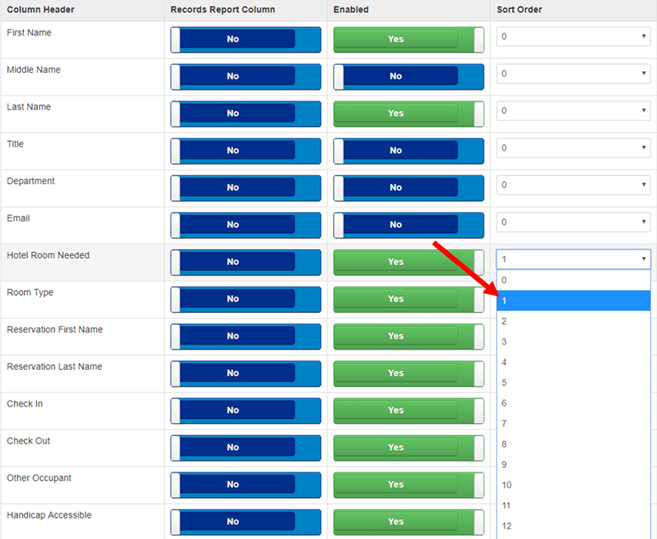
3. Sort Order Column - This feature allows you to designate how you would like to sort the data. For this report, you would want to sort by the question, "Hotel Room Needed" so that all of those registrants needing a hotel room would be grouped together in your excel report, see above.
Once you have sorted and enabled all of your desired fields and your report is ready, be sure to SAVE AND CLOSE at the top of the page.
Now in your REPORTS tab, you can see the ROOMING LIST REPORT you created. To download this report, use the download icon below circled in RED:
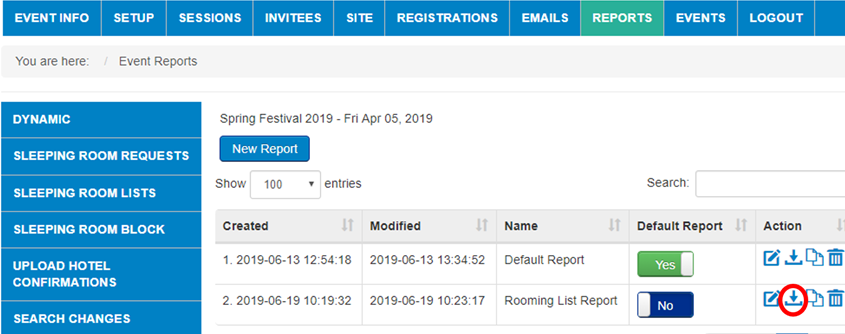
You can continue to create custom reports by selecting only the fields in the ENABLED column that you would like exported to a report and sort the data as desired.
Comments
0 comments
Article is closed for comments.