
This article will discuss how to setup Registration Types, Fees, including early bird and late.
Registration Types
To use Registration Types and charge fees for your event, you must enable registration fees. While in the Event, click on Event Info and check the box next to Registration Fees.
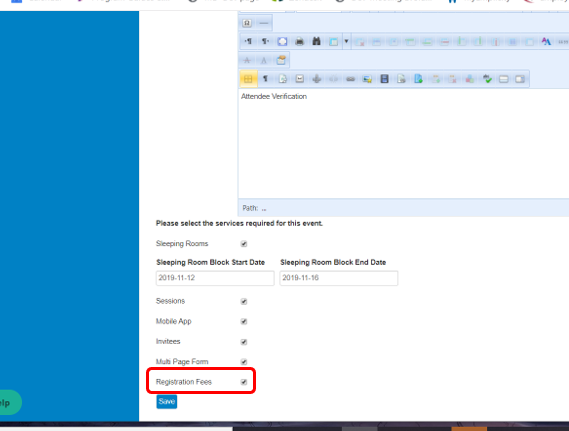
Once this is turned on, two new tabs will appear on the Setup menu of your Event. Pricing and Discount codes will now appear. Registration Types is always present as you are able to setup these types but not associate a fee with them.
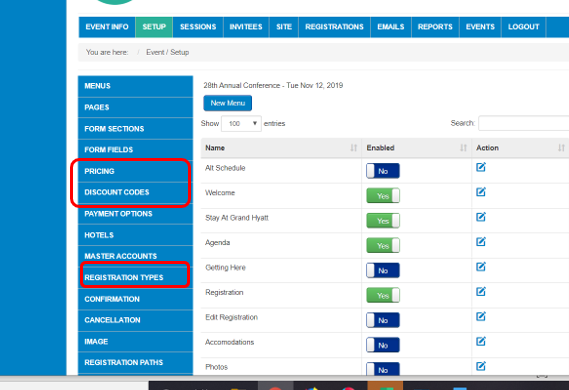
The first step is to setup your Registration Types. Click on the Registration Types tab on the left menu. Similar to other menus in the reg system, you area able to create new, edit existing, delete existing, toggle default or toggle enabling each type.
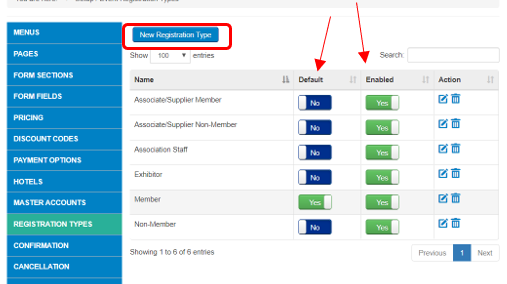
If you want a Registration Type to be visible, you will want it set to Yes under Enabled. If you want a Registration Type to be the default in the drop down list when someone is registering, you will make it Yes under Default. To add a new registration type, simply click the button at the top and give it a name. Edit existing ones by hitting the edit button under action or delete by using the trash can.
To setup Fees associated with your Registration Types, you will click on the Pricing tab on the left menu.
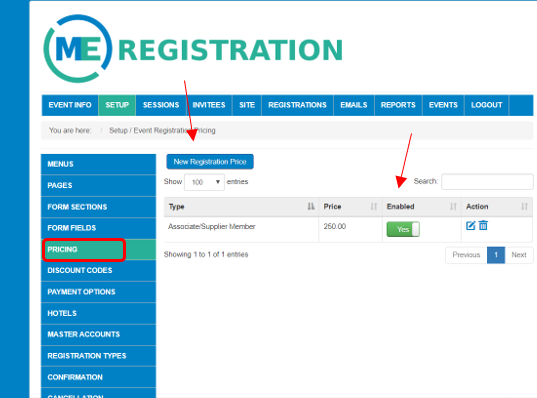
This form also gives you the ability to create a new registration price item, enable a price, edit a price or delete a price. To create a new item, click the New Registration Price button at the top.
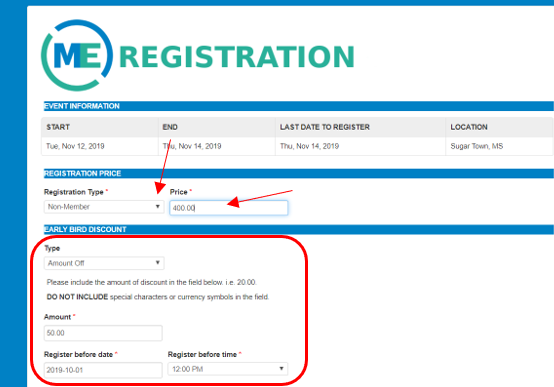
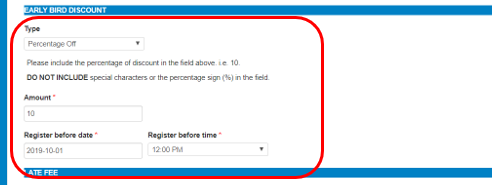
When setting up a new price item, the screen above gives you lots of options and information.
1. Event Information- this is simply giving you info about your event. It lists the start date, end date, last date to register and location.
2. Registration Price- Use the drop down to select one of your Registration Types that you setup in the previous steps. Give the registration type a price. The above example shows a $400.00 fee for Non-Member registration type.
3. Early Bird Discount- The system allows you to give a discount to your fee. This discount can be either an Amount Off or a Percentage Off. Both options are shown above. Select from the drop down which item you want.
a. Amount Off- If you are offering a dollar amount off if people register by a certain date/time, you will use this option. Select Amount Off from drop down, then enter the amount in the format of XX.XX. As the note mentions, do not include any special characters. Add the date and time of when you want the amount off to be offered through. In the above example, i'm offering $50 off if Non-Members registers before 12pm on 10/1/2019.
b. Percentage Off- If you are offering a percentage off if people register by a certain date/time, you will use this option. Select Percentage off from drop down, then enter the percentage number in the format of XX. As the note mentions, do not use any special characters. Add the date and time of when you want the percentage discount to be offered through. In the above example, i'm offering 10% discount if a Non-Member registers before 12pm on 10/1/2019.
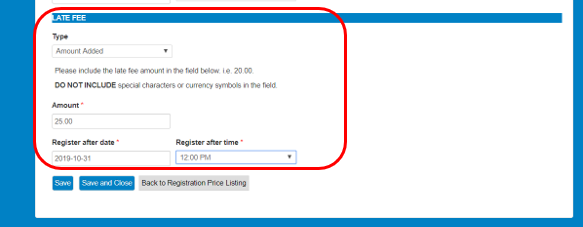
4. Late Fees- The system allows you to charge a fee if people register at the last minute. This fee is similar to the Early Bird Discount in that you have two options, Amount Added or Percentage Added. Select from the drop down which item you want.
a. Amount Added- If you are adding a dollar amount off if people register after a certain date/time, you will use this option. Select Amount Added from drop down, then enter the amount in the format of XX.XX. As the note mentions, do not include any special characters. Add the date and time of when you want the amount to. In the below example, i'm adding $25 to Non-Members that register after 12pm on 10/31/2019.
b. Percentage Added- If you are adding a percentage to people who register after a certain date/time, you will use this option. Select Percentage Added from drop down, then enter the percentage number in the format of XX. As the note mentions, do not use any special characters. Add the date and time of when you want the percentage added to be included. In the below example, i'm adding 10% if a Non-Member registers after 12pm on 10/31/2019.
Related article: Setting up Discount Codes
Related article: Setting up Payment Options
Comments
0 comments
Article is closed for comments.