
This article will discuss how to setup Discount Codes.
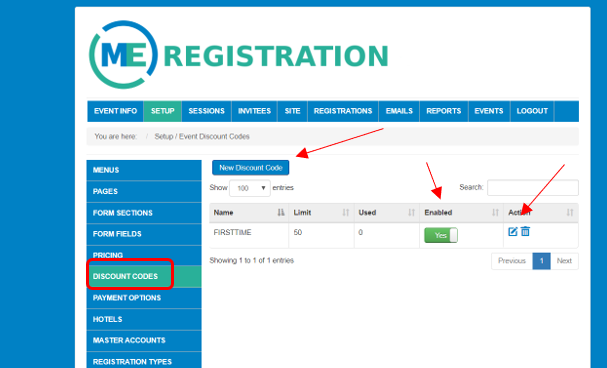
For discount codes, click on Discount Codes. For existing Discount Codes, you have options to disable by using the toggle button under Enabled. You can edit or delete existing by using the icons under Actions. Once Discount Codes are used, the amount of times they are used will show under the Used column. To enter a new Discount Code, hit New Discount Code.
Give your discount code a Name.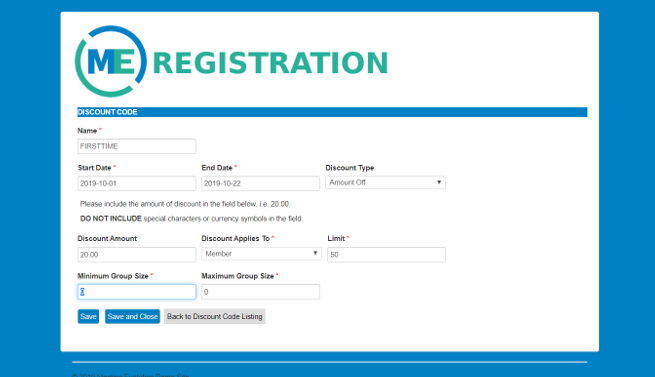
Enter the Start Date and End Date that your Discount Code will be good for. Similar to Registration Fees, you can choose to either offer an Amount Off or a Percentage Off.
Amount Off- if using an Amount Off, enter the dollar amount off in the Discount Amount box. As the note indicates, do not use any special characters. The above discount is $20.00.
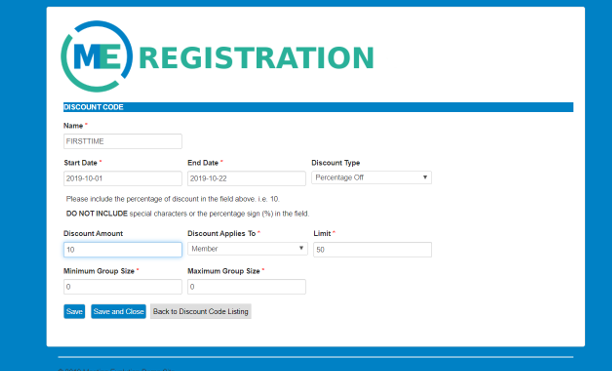
Percentage Off- If using a Percentage Off, enter the percent in Discount Amount. As the note indicates, do not use any special characters or the percent sign. The above example is a 10% discount.
Discount Applies To- You can offer discounts to individual registrations or to groups of registrations. Select Member for individual or Group for group registrations.
Limit- If you are limiting the number of times the Discount Code can be used, enter the amount in the Limit field. If it's unlimited, leave the number as 0.
Minimum Group Size- If you are offering your Discount Code to Group registrations and only want to offer it to groups that are bigger than a certain size and smaller then a certain size, use the Minimum Group Size and Maximum Group Size fields. If there are no size restrictions on your Group registration discounts, you can leave Minimum and Maximum Group size fields at 0.
Related article: Setting up Payment Types
Related article: Setting up Registration Types
Comments
0 comments
Article is closed for comments.