
This article will review the steps to import a calendar invite onto your outlook calendar successfully. Virtual Event Registration allows you to include virtual event information in the setup process that will be EMAILED within the confirmation the registrant receives along with a CALENDAR INVITE that they can accept. This Calendar Invite contains the virtual link, ID and Password as well as automatically creates a reminder in their calendar on the specific date and time you provide in the Event Information. Here is how you import the Calendar Invitation onto your existing Outlook calendar:
- Step 1- Save the calendar invite as a file on your computer
- Step 2- Import the calendar invite file to Outlook
Step 1- SAVE THE CALENDAR INVITE:
1. Click on the Calendar Invitation Icon:
2. Create a folder and SAVE Calendar Invitation file within this folder on your computer: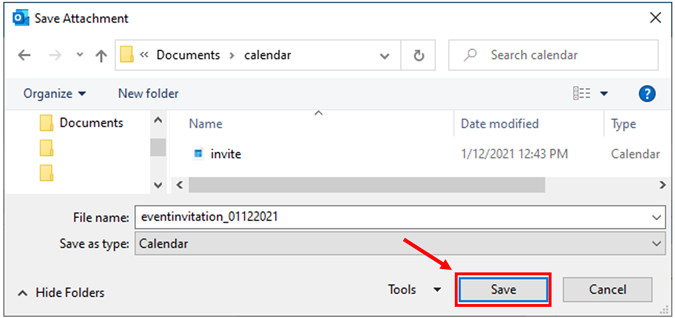
Step 2- IMPORT THE FILE TO OUTLOOK - ONE OF TWO WAYS:
FIRST WAY (Importing through Outlook)
1. Go to your calendar in OUTLOOK. Click on FILE in the top left hand corner:
2. Click on OPEN & EXPORT
3. Click on IMPORT / EXPORT
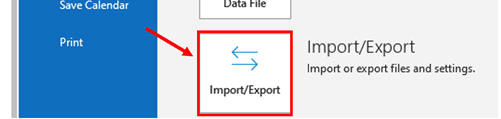
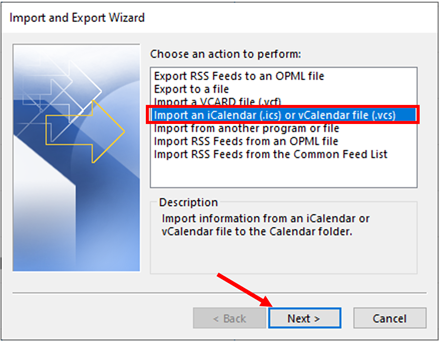
4. Choose Import an iCalendar (.ics) or vCalendar file (.vcs) within Import Wizard and then hit NEXT
5. Find the folder you created, click on the Calendar Invitation file and click OK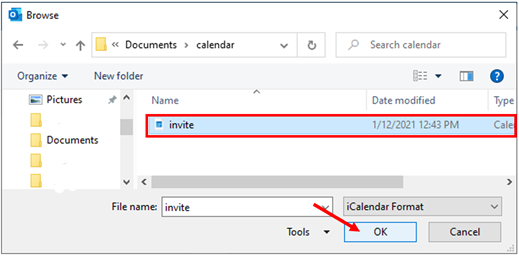
6. Click on IMPORT

7. Now your events should show on your Outlook Calendar:
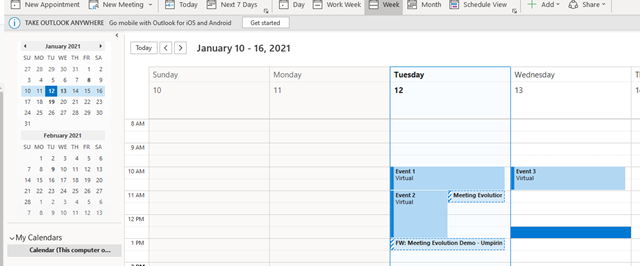
SECOND WAY (Dragging File into Outlook)
1. Open both Outlook and the folder containing the calendar invitation file on the same screen in minimized windows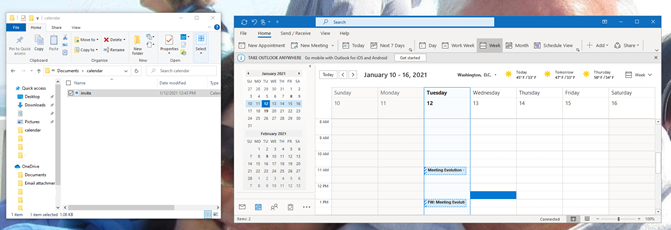
2. Click on the Calendar Invitation File and with mouse button held down, drag the file onto your outlook calendar and release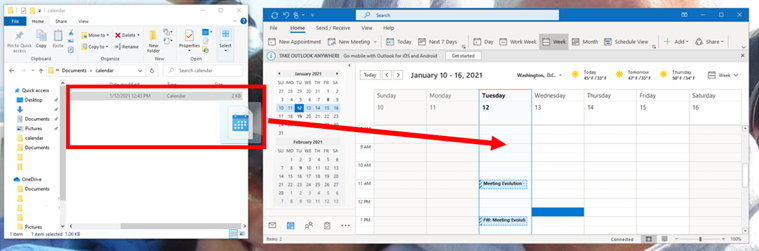
3. Now your events should show on your Outlook Calendar:
Comments
0 comments
Article is closed for comments.