
The following options are available on all reports:
Customize Columns, Export or Print Reports
All report listings can be exported, printed and customized using the Reporting Toolbar.

|
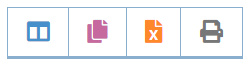
Use the Reporting Toolbar for the following options:
COLUMNS - customize your report view by adding or removing colunns from the display. COPY the report data and paste into another document EXPORT the report data to an Excel spreadsheet PRINT the report. Right-click to print the report or save as a PDF. |
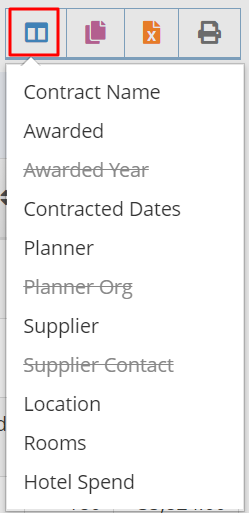 |
All reports contain additional columns of information that can be added or removed from the view to customize your listings. The on-screen view will be used in the export or printed report.
Additional Reporting Options
Company-wide or Planner-specific reports
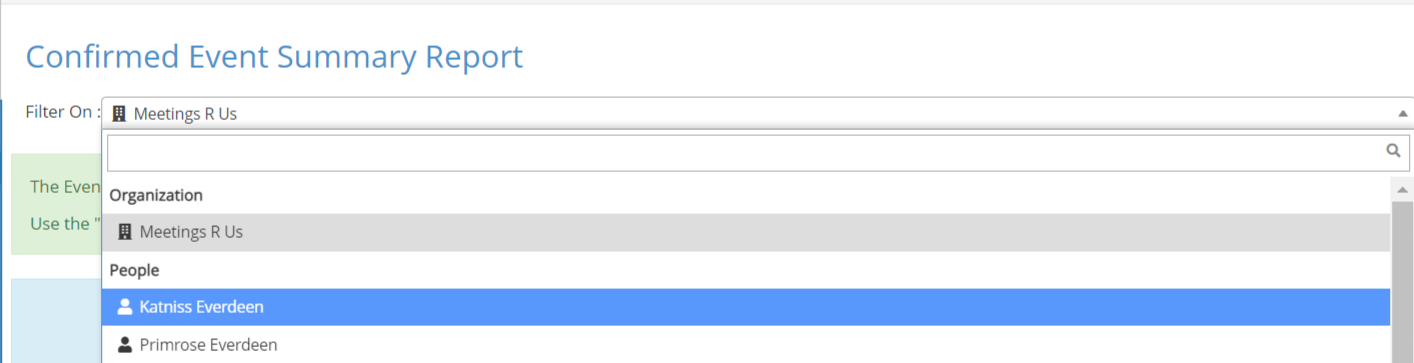
If you have access to viewing all of your company's events, a drop-down list will be shown at the top of the report. Select either the company name for all events, or select a planner to see their events.
If you do not have access to viewing all of your company's events, your view will be limited to your events.
Use the Year Start and Year End drop down lists to select the year(s) shown in your report.
All Active and Completed events will be shown in the listing by default. You can also include Cancelled events in your report by toggling the Event Status button.

Comments
0 comments
Article is closed for comments.