
Your property profile contains information used by planners in their site searches and in your RFP response reports.
This article includes the following topics:
View and Edit Your Property Profile
To view and update your profile, select Properties and My Properties from the toolbar.
Then select your property from the list of properties you represent.

Your property profile will appear. Select Edit Profile to update.
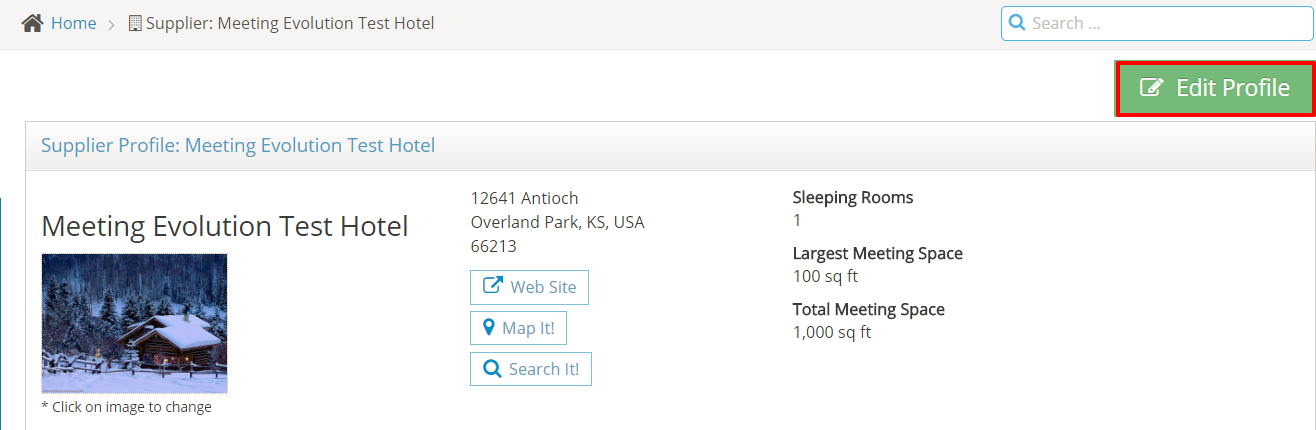
The following information is required in the property profile:
- Address: Street Address, City, State/Province and Country
- Settings: Time Zone, Currency Used and Measurement System (US Standard or Metric)
- Property Features: Total number of guest rooms, largest meeting space and total meeting space
- Website: A formatted URL address is required to save your profile updates (https://...)
The remaining information is optional but is available for planners in their property searches and RFP Comparison reports.
If you need to update the name or brand affliation of your property, please contact support@meetingevolution.net.
Add an Attachment to the Profile
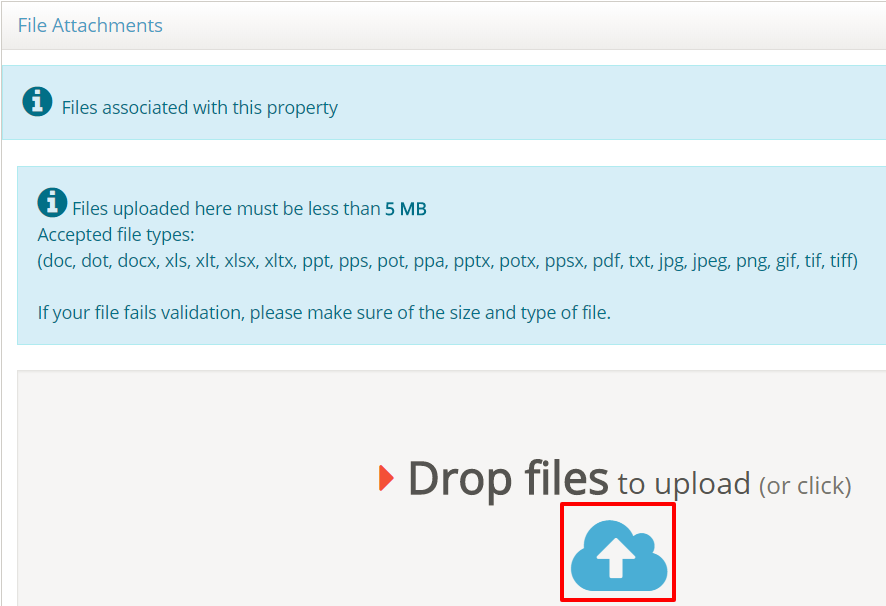
Attachments can be added at the bottom of the profile page. Documents posted here can be viewed by all planners and will be included in all RFP responses for your properties.
Examples of Profile Attachments:
- Sales Brochure
- Meeting Space Floorplans and Capacity Charts
- Catering Menus
- Audio Visual Brochure
Drag and drop the file attachments or click on the upload icon to select a document.
Note: Attachments that are specific to an RFP response such as pricing or concessions should not be added to the profile as they can be viewed by all planners. These attachments should be included within your RFP response.
Add or Update Your Property Photo
From the Profile View page, click on the existing image to update it.
Select Change Image and upload a new photo. Select the check box to confirm the upload.
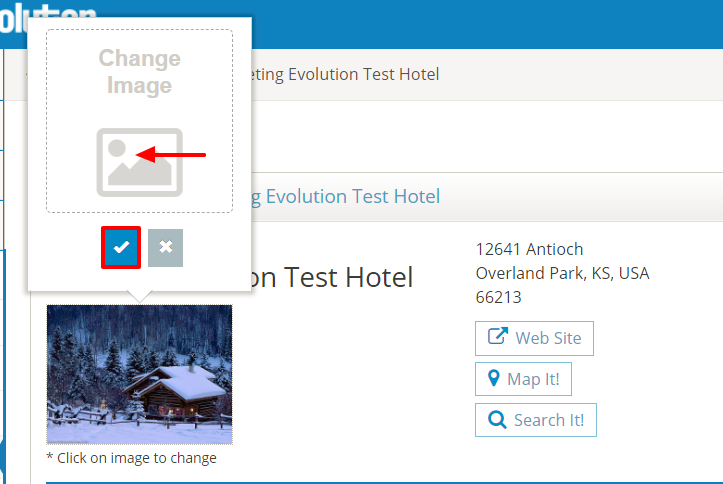
The updated photo will be visible for planners in all RFP responses and searches.
Comments
0 comments
Article is closed for comments.