
Global Sales Office users have the ability to customize the following information in their reports.
- Reports by Planner Customer
- Customize Listings
- Download/Print Reports
- Change the Fiscal Year for Reports
- Change the Currency for Reports
To show reports and activity from a specific planner customer, select the planner organization from the drop down listing of All Planner Organizations.

In addition to RFPs, this option will filter all reporting activity specific to the selected planner customer.
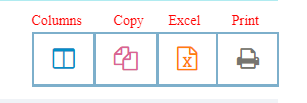
All listings of RFPs or contracts can be customized to add or remove information. All listings include the following options: Columns, Copy, Excel, Print.
Columns
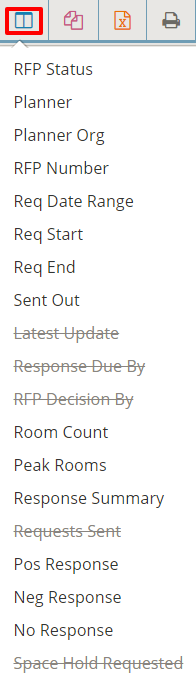
Use the Columns icon to customize the report by selecting or un-selecting the columns to be displayed in your report. Information columns will be added or removed from the screen to customize your report view.
Use the Copy icon to copy/paste the report information into another document.
Use the Export icon to export the report information into Excel.
This feature will copy or export the information on screen in your customized report.
Print Report
Use the Print icon to open your report in a printable view. Right-click anywhere on the page to select the Print option or download and save as a PDF file.
Change the Fiscal Year of the Reports
Select the Settings icon on the home page:
Select the starting month of your fiscal year from the drop down menu and select OK.
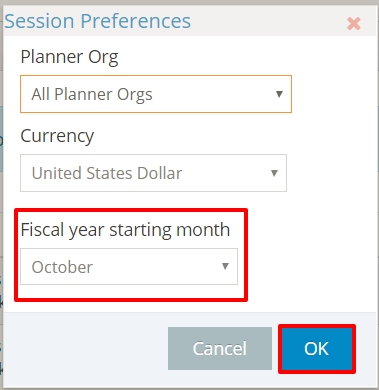
All pacing and financial reports will be updated for the selected fiscal year.
Customize the Currency of Your Reports
Select the Settings icon on the home page:
Select the currency from the drop down list of options and select OK.
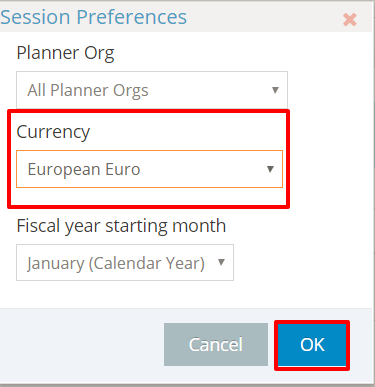
All contracts and financial reports will be shown in the selected currency.
Comments
0 comments
Article is closed for comments.