
Instructions for creating a supplier contract using your organization's contract template.
From the home page, locate the RFP and select Responses to reach the Proposals tab.
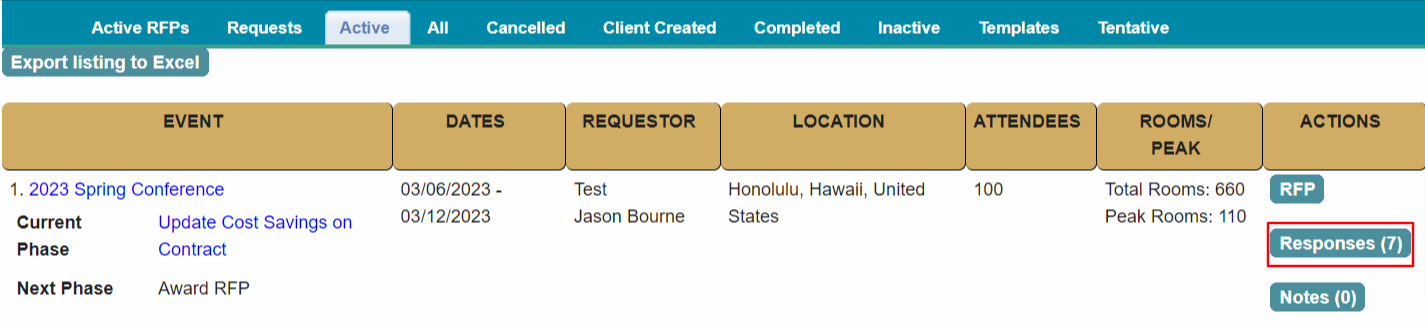
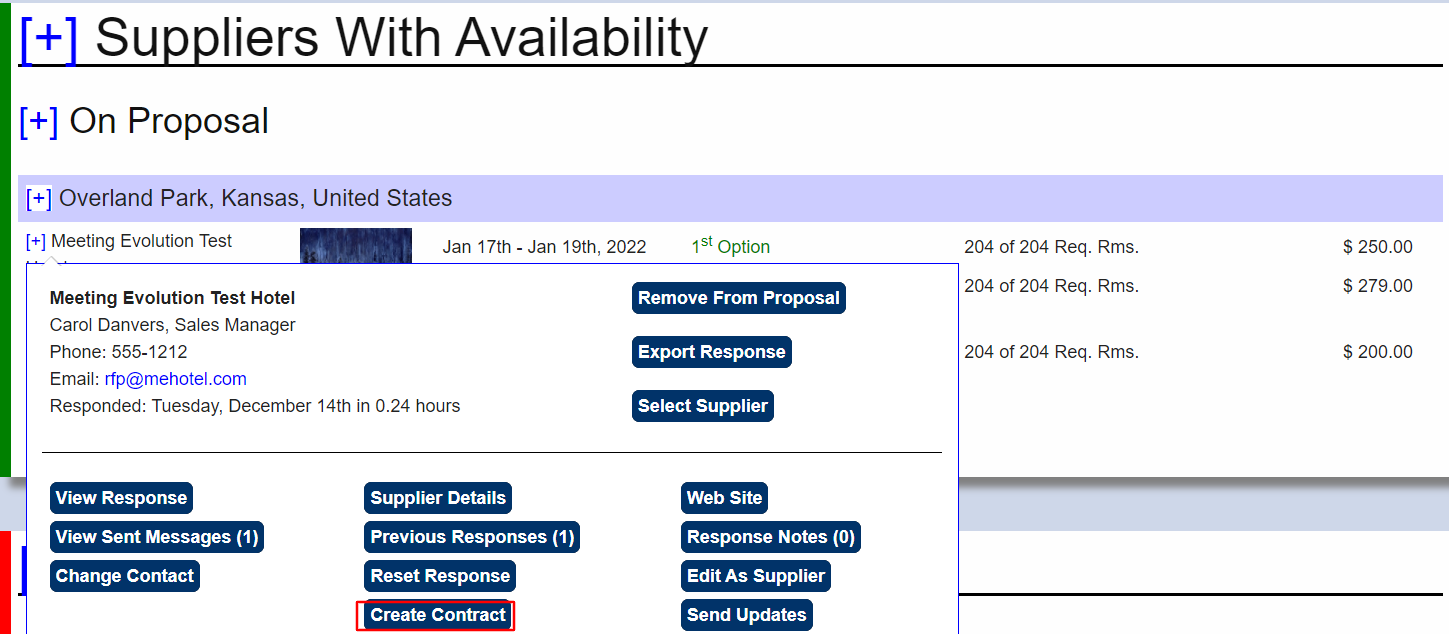
Locate the hotel on the Proposals listing.
Click on the + sign for the hotel and select Create Contract.
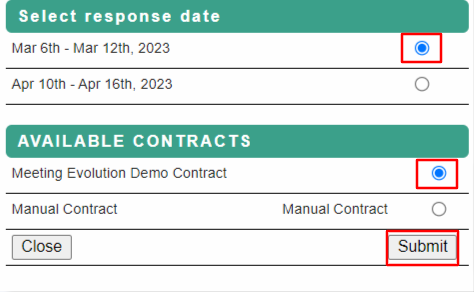
Select Dates and Template
If the response has multiple dates available, select the date you are contracting.
Select your organization's contract template from the Available Contracts options.
A manual contract does not use a template.
Contract Dates
You will be directed to the Contract – Dates tab.
Adjust dates if needed and submit.

Review Contract Specs
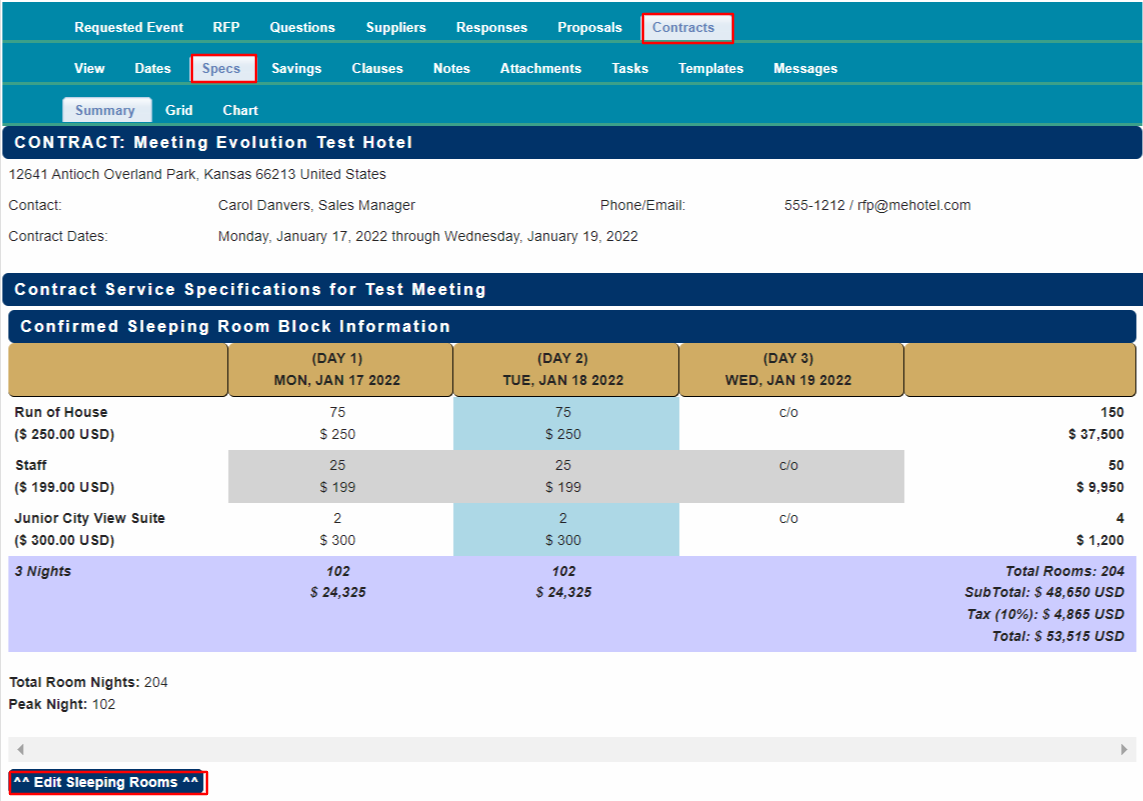
Select Contract – Specs to review the room block, room rates and meeting room assignments.
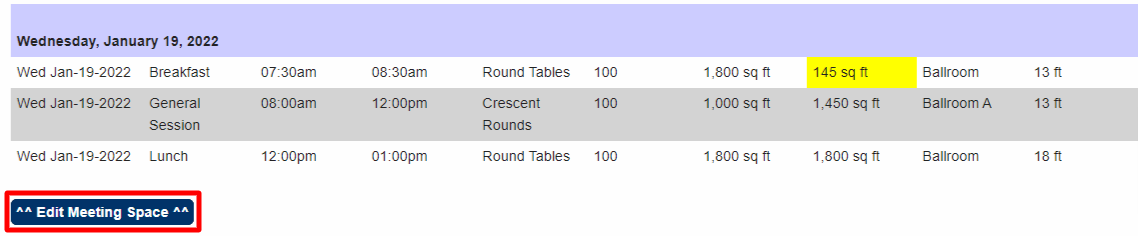
Select Edit Sleeping Rooms if you need to update the room block or the rates or select Edit Meeting Space (button at bottom of meeting agenda) to update the agenda or room assignments.
The Specs information here will be imported into the contract template.
Download Contract Template
Select Contract – Clauses to access the template.
Select Export Contract to Word to download and save the contract to your computer.
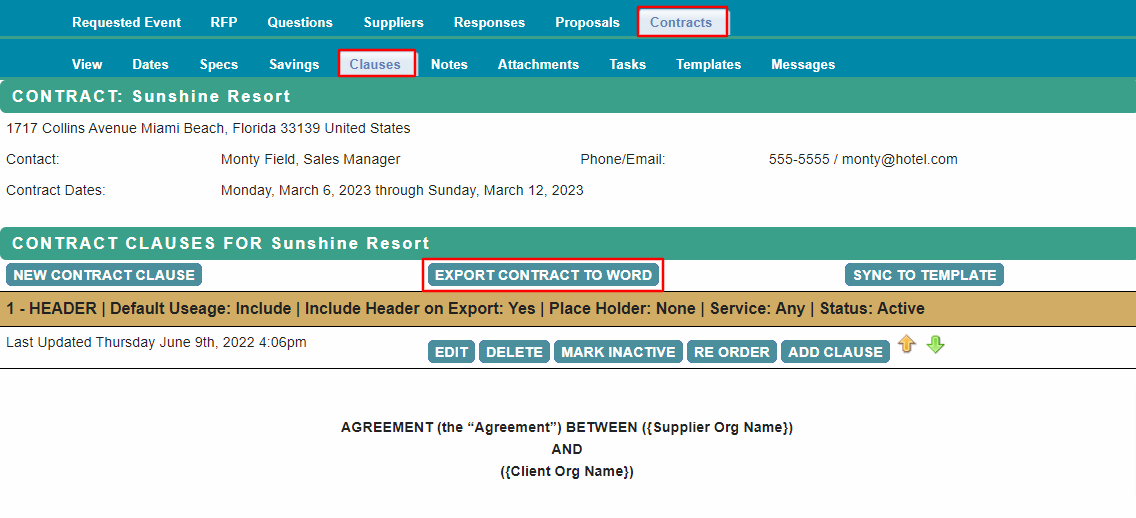
The word document will be pre-populated with information from the RFP response such as supplier name, address and contact, dates, room block, room rates and meeting agenda. Review the contract to update other information as needed.
The contract document is sent to the hotel and negotiated outside of Meeting Evolution.
Proceed to Award RFP when you have a countersigned contract.
Comments
0 comments
Article is closed for comments.