
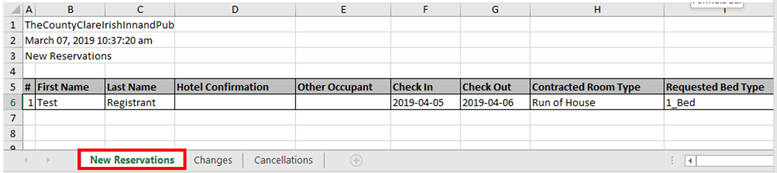
1st TAB: Any NEW RESERVATIONS
2nd TAB: Any CHANGES to current reservations
3rd TAB: All CANCELLATIONS
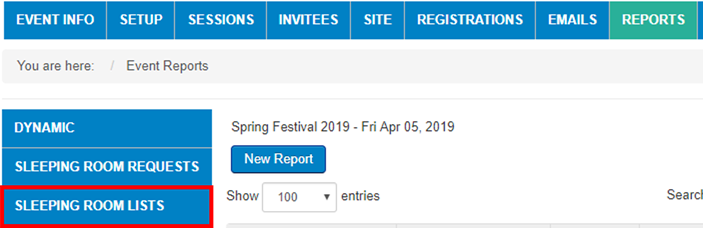
Go to REPORTS -> SLEEPING ROOM LISTS
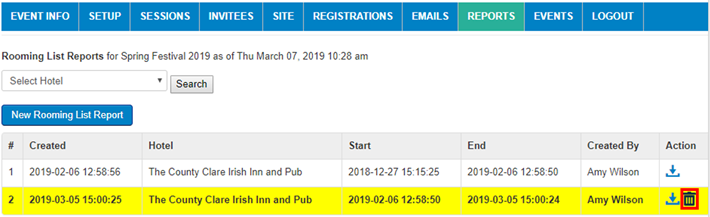
If you still show any previews (shown in yellow), make sure you delete them before creating your first CHANGE report
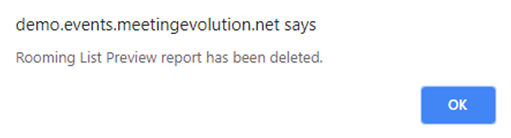
When deleting a report, you will get a window box, letting you know preview is being deleted, select OK:
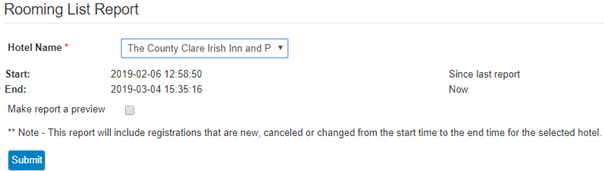
Now you are ready to run a change report, select NEW ROOMING LIST REPORT:

Fill in Hotel, make sure you do not select PREVIEW, hit SUBMIT:
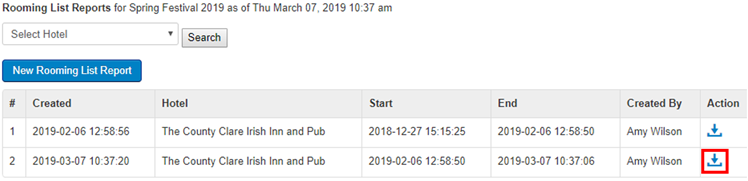
Now you will see two reports listed on this page. The first report was your initial HOTEL ROOMING LIST. The second report, which you just created, is your first CHANGE REPORT. Click on DOWNLOAD icon in action column to export to Excel:
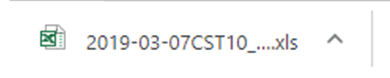
You can rename the report before saving, if you would like. (However, the default name contains the time stamp of when you created the report, so many users like to keep this information when saving):

The bottom left corner of your screen should now contain the report for you to open in Excel, click on this:
The tab you land on is TAB 1, which shows any NEW RESERVATIONS since your initial HOTEL ROOMING LIST:
TAB 2, shows any CHANGES since your initial HOTEL ROOMING LIST:
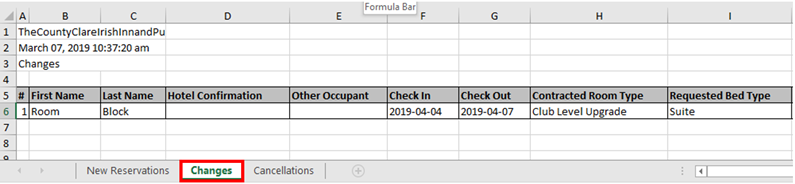
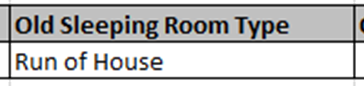
By scrolling to the right using bottom bar, you can see what fields were changed as you go along. In this example, the Sleeping Room Type was changed from RUN OF HOUSE (below - Old Sleeping Room Type) to CLUB LEVEL UPGRADE you can see in report view (above - Contracted Room Type)
TAB 3, shows any CANCELLATIONS since your initial HOTEL ROOMING LIST:
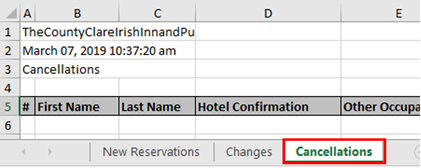
In this example, there were no cancellations reported since the initial HOTEL ROOMING LIST was created.
NOTE: Any subsequent reports you create from here will be a snapshot in time from the last generated CHANGE report until the new CHANGE REPORT is created.
Comments
0 comments
Article is closed for comments.