
Now that you have confirmed your Sleeping Room Block is correct (Step 1) and have moved all records off of waitlist (Step 2), you are ready to run previews and rooming lists for the hotel.
Go to REPORTS -> SLEEPING ROOM LISTS
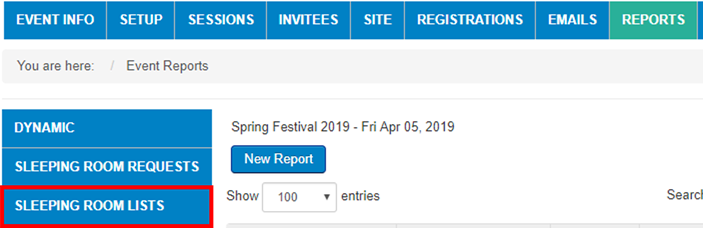
Now click on NEW ROOMING LIST REPORT

BE SURE YOU SELECT PREVIEW TO MAKE SURE YOUR ROOMING LIST IS CORRECT BEFORE CREATING A REAL ONE - You cannot delete a rooming list once it is created, only previews
1. Select HOTEL from Drop Down
2. Click on MAKE REPORT A PREVIEW
3. Click on SUBMIT
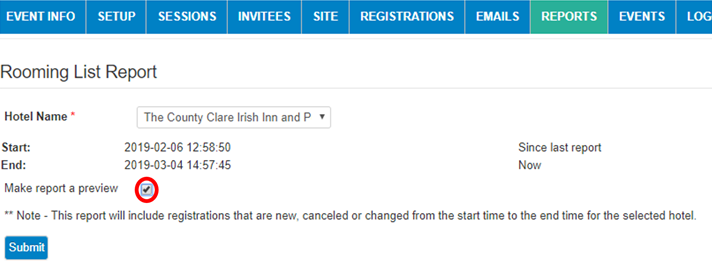
This will create a report highlighted in yellow (preview) for you to download and ensure that everything looks right before creating your first HOTEL ROOMING LIST. Click on download icon in red to export this to Excel:

If it all looks good, delete the preview report by selecting the TRASH CAN ICON on the far right. **NOTE: YOU MUST DELETE ALL PREVIEWS BEFORE RUNNING REAL REPORTS OR IT WILL NOT DISPLAY THE DATA.

Now click on NEW ROOMING LIST REPORT
And run a real report without selecting PREVIEW
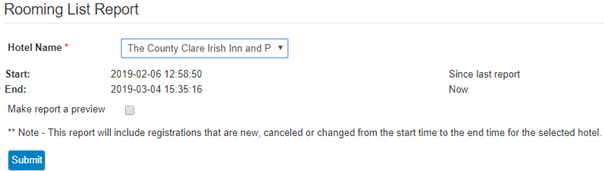
And download this report to Excel. This will be the official HOTEL ROOMING LIST REPORT you send to the hotel.

Now that you have created an official Hotel Rooming List, you are ready for the final step: Step 4: Creating Cancellations / Change Reports
Comments
0 comments
Article is closed for comments.