
When registrations are completed and it is time to run rooming lists, the next step is moving reservations off of waitlist. Remember, all registrants are assigned to the designated DEFAULT HOTEL and the one designated DEFAULT ROOM TYPE. This usually results in exceeding the inventory for that room type and you will see numerous reservations on WAITLIST as a result.
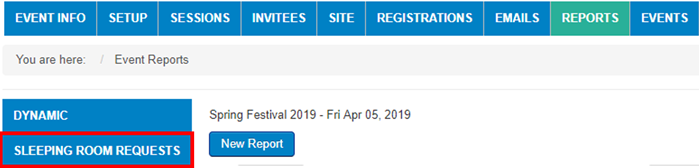
To access the waitlist records, go to REPORTS -> SLEEPING ROOM REQUESTS
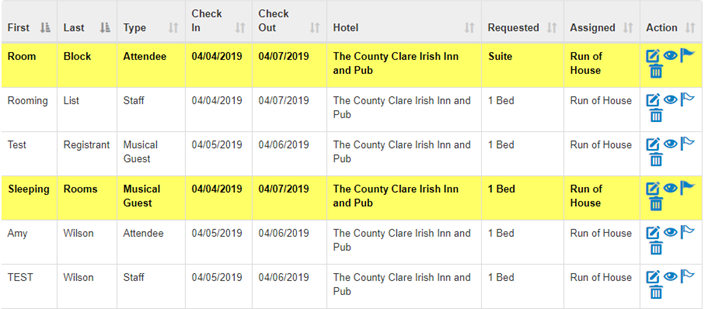
Now you will see the below reservations highlighted in yellow that exceeded the Default hotel/room type inventory and are now on WAITLIST:
There are two ways to get a reservation off of waitlist:
1. ASSIGN ROOM TYPES to another room at the same (default) hotel
2. MOVE RESERVATIONS to another hotel / room type
ASSIGNING ROOM TYPES - (To a different room type at the same hotel)
On this Sleeping Room Request page, click on ASSIGN ROOM TYPES

1. Select default hotel from drop down
2. Select the default room type to move from
3. Click on Search
4. Select the room type to move to
5. Select the records to move by placing a check in the check box to the left of the reservation
6. Click on "Assign Room Types" at the bottom of the page
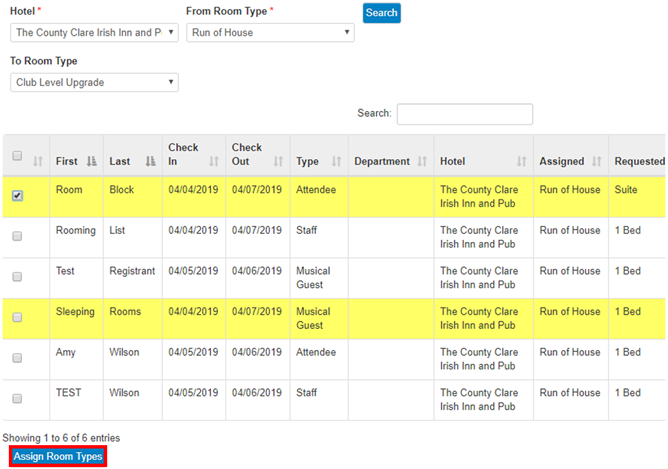
The system will provide you a report on the results. The system will always move the records, but it may put the records on waitlist depending on inventory of the new room type (based on check in and check out date as well).

MOVING RESERVATIONS- (To a different hotel and room type at the new hotel)
On the Sleeping Room Request page, click on MOVE RESERVATIONS
1. Select the hotel to move from
2. Select the room type to move from
3. Click on Search
4. Select the hotel to move to
5. Select the room type to move to
6. Select the records to move
7. Click on "Move Reservations" at the bottom.
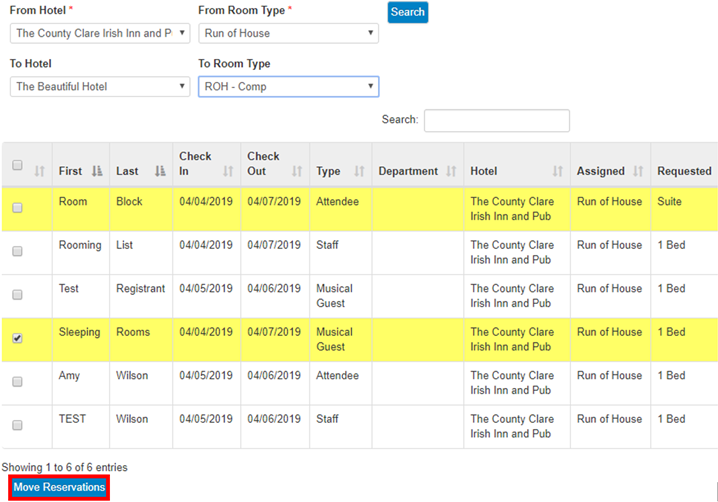
Again, the system will provide you a report on the results. The system will always move the records, but it may put the records on waitlist depending on inventory.

You will continue this process until you have all of the reservations off of waitlist (no more records highlighted yellow in Sleeping Room Requests). You are now ready to run a preview rooming list. Please go to Step 3: Running Previews and Hotel Rooming Lists
Comments
0 comments
Article is closed for comments.