
Before being able to run a successful rooming list, you need to make sure the Default Hotel and Default Room Type for that hotel are set up in the SETUP tab along with a Contracted Sleeping Room Block entered prior to registrations being submitted. This will result in registrants being automatically assigned to the Default Hotel in the Default Room Type as they register.
Refer to the SET UP HOTEL article for further instructions on this process.
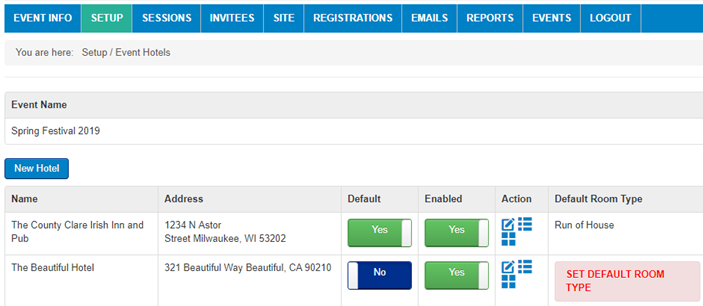
1.To ensure your site has been set up correctly, go to the SETUP tab and click on HOTEL. (If you do not have a HOTEL tab on your left hand menu, then you need to enable SLEEPING ROOMS in the event info tab - see SET UP HOTEL article) Once you click on HOTEL., you should see the name of a DEFAULT HOTEL on this page as well as a listed DEFAULT ROOM TYPE in the far right column of that Hotel's row. If a DEFAULT ROOM TYPE had not been designated, you would see a SET DEFAULT ROOM TYPE warning in that column for both of the hotels listed below:
To check that the sleeping room block was entered, click on the BLOCK icon circled in red in the image below:

Now you will see the Contracted Room Block entered for this hotel:
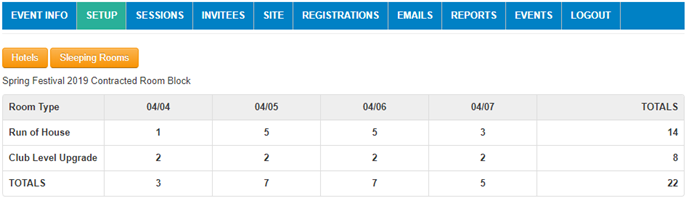
Once you have confirmed that everything is set up correctly and the room inventory matches the contracted room block, your hotel is set up correctly.
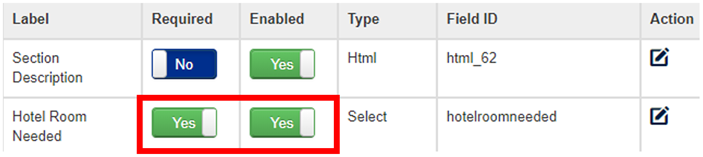
2. Check Registration form to ensure it is set up to move registrations into the Sleeping Room Requests. Make sure the field "HOTEL ROOM NEEDED" is on the form. It should be enabled in the Hotel Accommodations section. This is a critical step to ensure registrations go into the Sleeping Room Requests. There is programming around this field. When a registrant selects 'Yes' for Hotel Room Needed, the system then AND ONLY THEN goes through the wait-list process and adds them to Sleeping Room Requests.
Now that you have completed Step 1. Please refer to Step 2: Assigning Room Types and Moving Reservations
Comments
0 comments
Article is closed for comments.