
Uploading Hotel Confirmations into your event allows you to email out to the guests their hotel assignment, hotel confirmation number along with check in and check out dates. Use this HOW TO guide to upload / import the hotel confirmation numbers provided by the hotel.
NOTE - Please be sure you are using the rooming list file that the system generates.
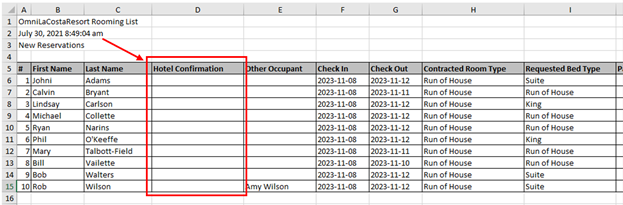
STEP 1- Send Rooming List to hotel with instructions to fill in Column D with each registrants Hotel Confirmation Number. Here is a rooming list prior to the hotel filling in Column D with each registrants Hotel Confirmation Number. Be sure to keep this file formatted just like it was generated for import:
STEP 2 - Check Completed Rooming List. Once you get the rooming list back from the hotel and prior to import, please double check the following:
- Hotel Confirmation is in column "D"
- Verification Number is in column "L"
- The upload file extension is .xls or .xlsx (Excel)
STEP 3 - Upload file with Hotel Confirmations in Column D.
Go to REPORTS -> UPLOAD HOTEL CONFIRMATIONS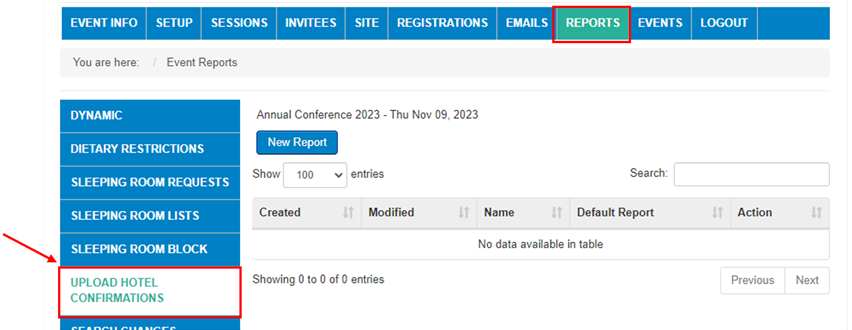
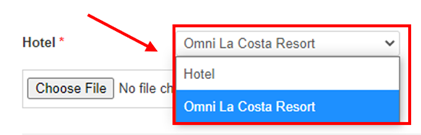
STEP 4 - Select Hotel. Use drop down to select the hotel in your Rooming list file for upload.
STEP 5 - Choose file from your computer and Preview Import. Click on CHOOSE FILE, find the completed rooming list from your computer and then click on PREVIEW IMPORT -
The following registrations will be updated with the hotel confirmation numbers.
Rows marked in RED means there is an issue. Please review the message column for more information.
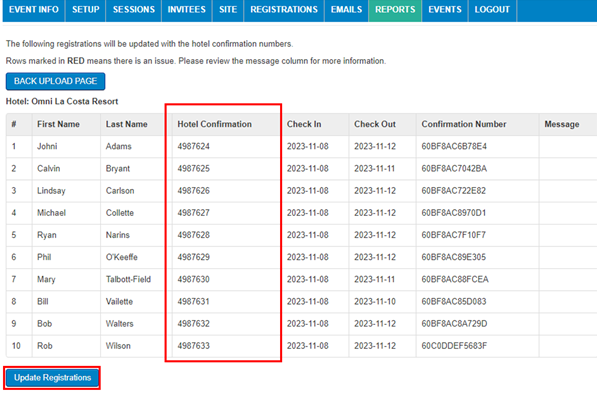
STEP 6 - Click on UPDATE REGISTRATIONS. You will see a message stating the number of registrations that have been updated.
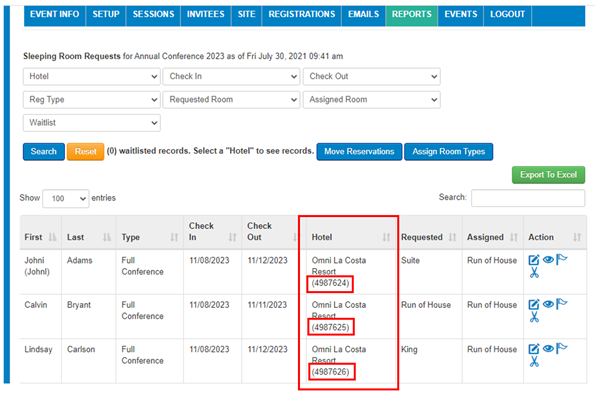
STEP 7 - Check the SLEEPING ROOM REQUESTS REPORT. To confirm the Hotel Confirmations uploaded correctly, Go to REPORTS ->SLEEPING ROOM REQUESTS. Check under hotel name for the uploaded confirmation numbers.
Comments
0 comments
Article is closed for comments.