
Requested Event Record Instructions.
From the home page, select the Event Name to view the Requested Event tab.
Select Edit to open the form and update.
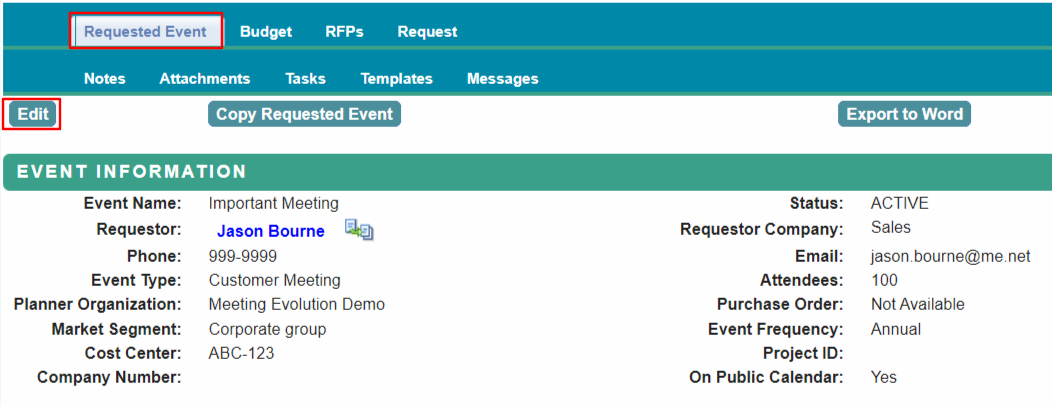
Information from the Meeting Request will be pre-populated into this form and can be edited here.
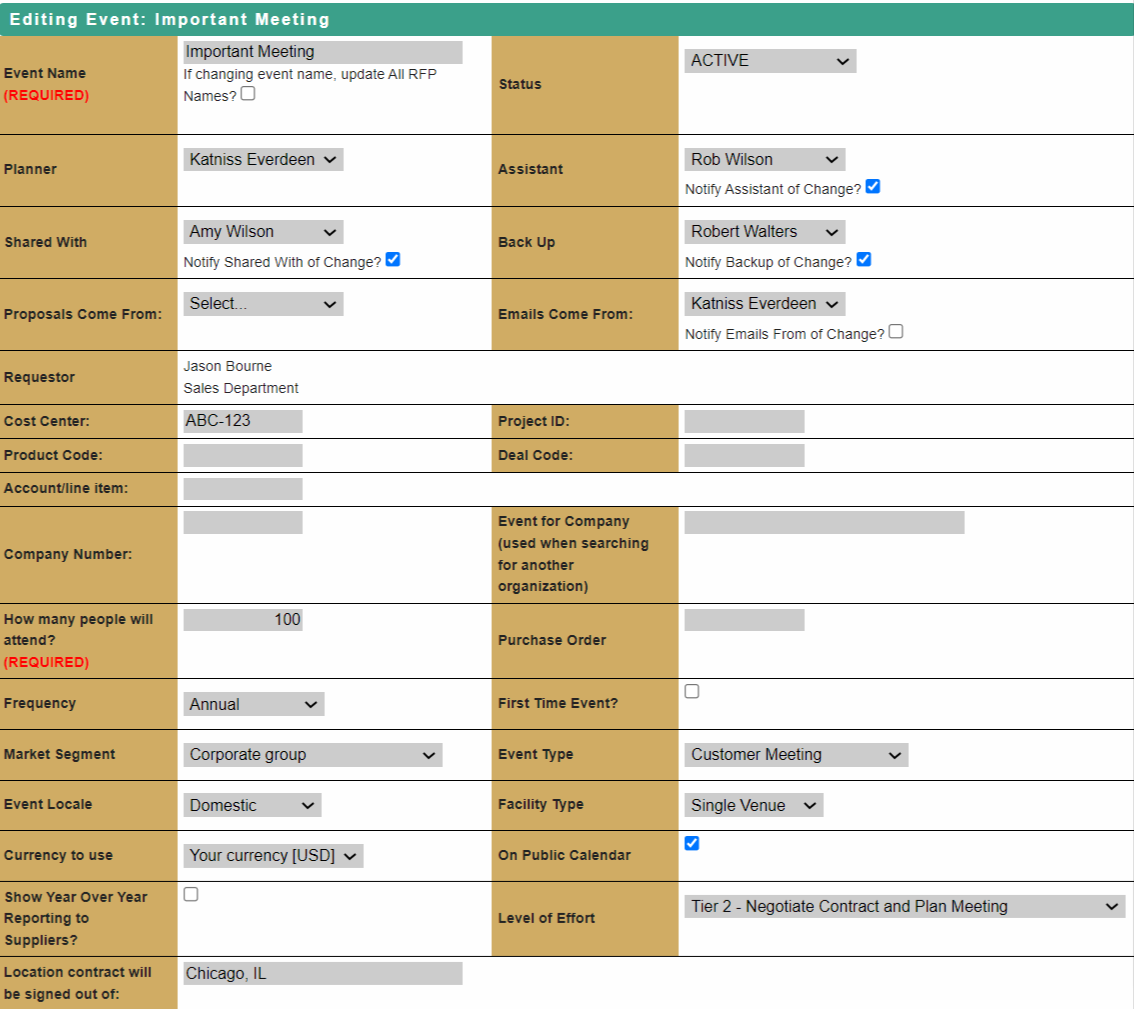
Use the drop down lists of Planner contacts to assign additional Planners to work on the event. The users in these roles will have the RFP available on their home page.
- Primary Planner: The primary contact for the Event.
- Assistant, Shared With, Backup: People who have access to working on and editing the event.
- Emails Come From: This person is listed as the primary contact on the RFP for hotels and RFP emails will come from this person. If not selected, the Primary Planner is used by default.
- Proposals Come From: The proposal emails to the client will come from this person. If not selected, the Primary Planner is used by default.
Use the Notify of Change checkboxes to send an email notification of the new assignment.
The Preferred Dates and Locations will be shown - review and update if needed.
You can also add the Event History. The history will be shown to suppliers on the RFP.
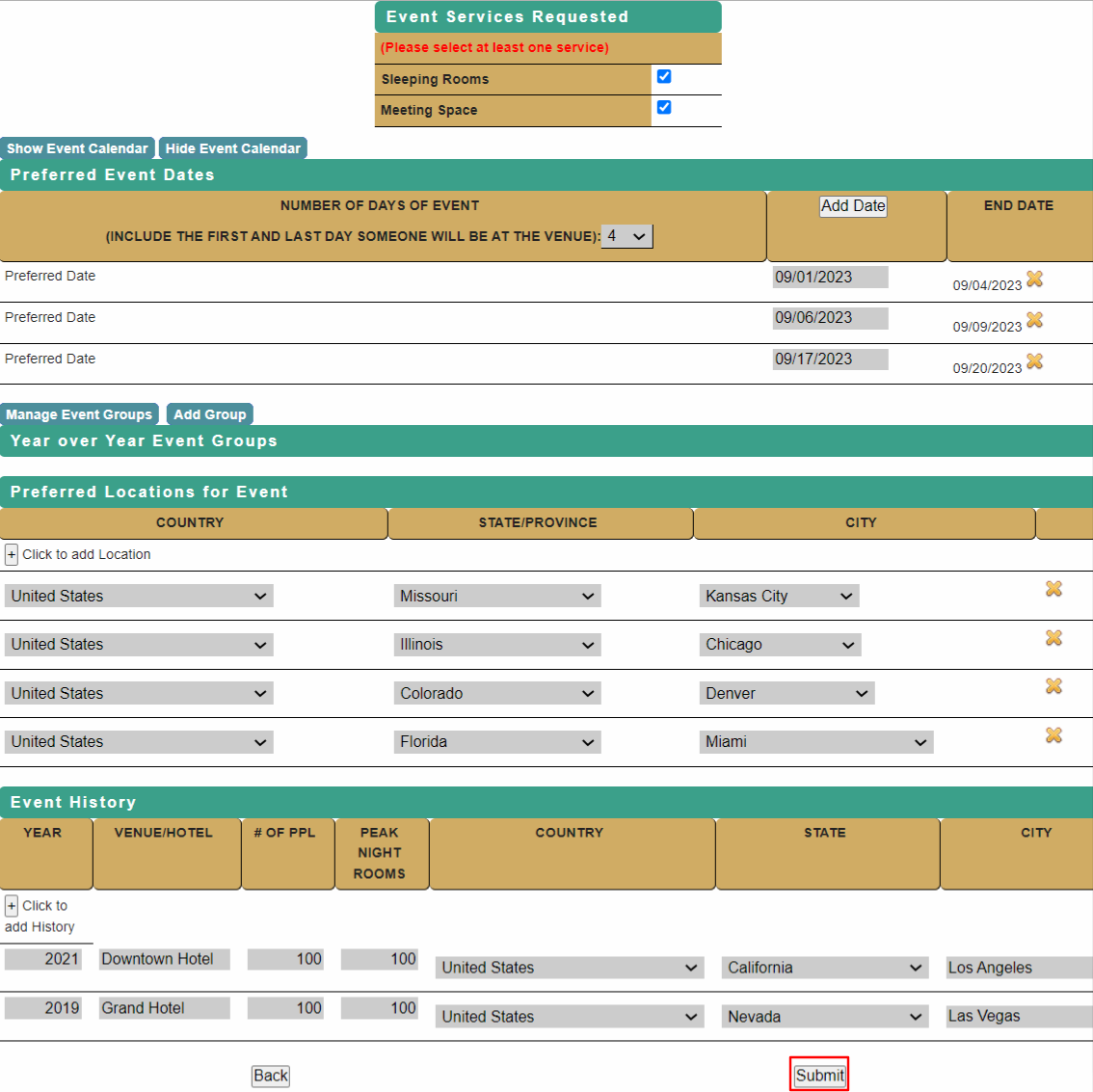
Submit changes at bottom of page to save.
Proceed to RFP Checklist - RFP Information Page for next step.
Comments
0 comments
Article is closed for comments.