
If you are needing to edit an RFP Response that another contact representing your property submitted, you will need to utilize the TAKE button in Meeting Evolution.
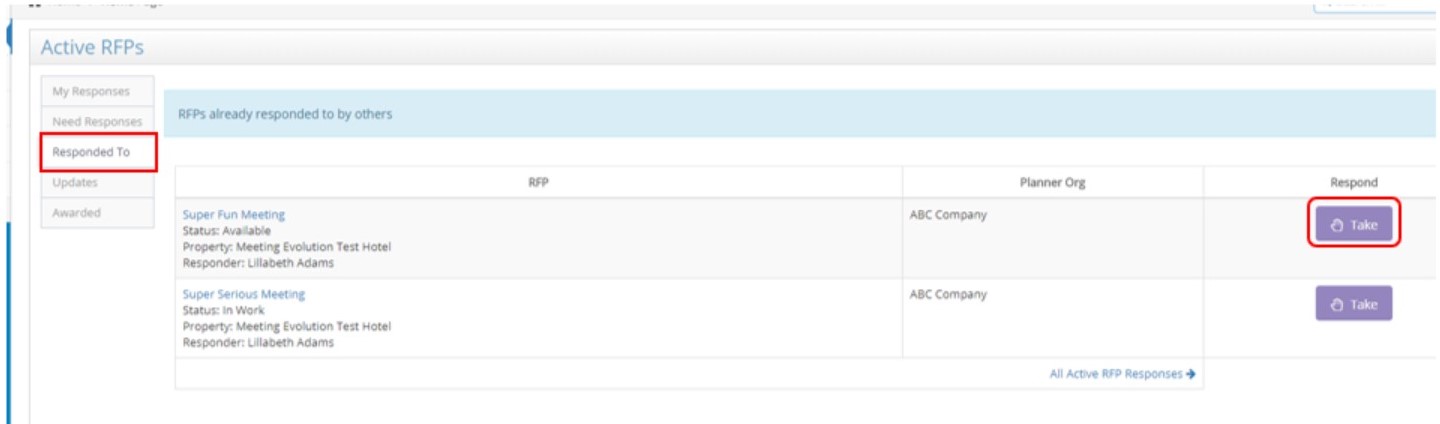
1. From your homepage, select the RESPONDED TO tab under Active RFP's
2. On the right hand column, there is a TAKE button that allows you to now own this RFP:
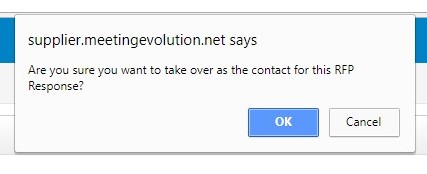
3. Once you select TAKE, you will see a pop up window at the top of the page that asks for your reply of "OK"; meaning you are sure you want to be the new designated contact for this RFP response.
4. Once you have successfully taken the RFP, you will need to click on the MY RESPONSES tab to access that RFP for editing.
5. You will see a listing of your RFP's, locate the correct meeting and select EDIT to update the RFP response.

NOTE: You can edit a Response in a declined status to "available" by selecting the drop down in the response for "YES" instead of "NO" that there is Availability on these dates.
*The SAVE AND CONTINUE button when editing an RFP saves all of your changes, there is no SUBMIT button in the edit process like there is in the initial response.
Refer to How to Edit an RFP Response for additional information.
Comments
0 comments
Article is closed for comments.