
Now that you have created the look of the form in the STYLE Tab, below is the fourth step for setting up your form to completion.
SET UP TAB -> CONFIRMATION TAB
Create the confirmation email that each form submitter will receive upon completing the form. This step needs to be after Form Sections and Form Fields, because it requires you to have all of your sections and fields in place to accurately create the logic needed to pull all data correctly into the confirmation email.
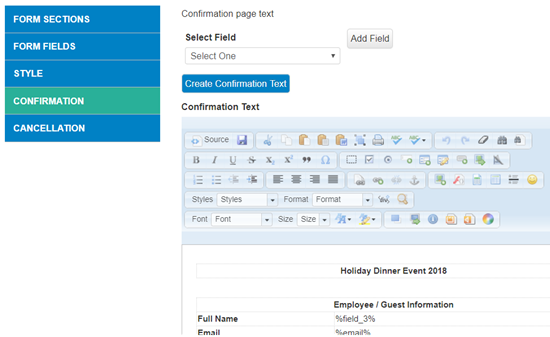
Now that all of the Sections and Fields have been created, just click on the CREATE CONFIRMATION TEXT button and scroll down and select SAVE. (Keep in mind, if you change the fields or sections in anyway after this step, you will need to click this button again to reorder or include updated fields to the confirmation.)
This Text Area also allows you to add additional text you may want included on the confirmation email, just be careful here not to erase or edit existing "source code" text.
Once you have created the confirmation email, you can go on to the next step - Create Cancellation Email
Comments
0 comments
Article is closed for comments.