
If you have selected the SLEEPING ROOMS checkbox on the EVENT INFO tab, then you have a HOTEL tab showing in SETUP to establish a default hotel and any additional hotels. Registrations will be assigned into these hotels to manage your room block and create Rooming lists.
Four Steps to Creating hotel(s) and room block:
- STEP 1 VERIFYING ROOM TYPES HAVE BEEN ADDED
- STEP 2 CREATING A DEFAULT HOTEL
- STEP 3 ASSIGNING ROOM TYPES TO THE HOTEL WITH INVENTORY
- STEP 4 ENABLING "HOTEL ROOM NEEDED" FIELD ON REGISTRATION FORM
STEP 1 VERIFYING ROOM TYPES HAVE BEEN ADDED - Before beginning the process of adding a default hotel, you need to make sure ROOM TYPES have been added to assign to the hotel. This is back in the TEMPLATE TAB in EVENTS (see below). Here you can add room types by clicking on NEW SLEEPING ROOM, and entering ROOM TYPES based on the hotel contracted room block. These Room Types will be available for every Registration Site in your organization. You may already see the room types you need listed here. If so, you do not need to add these again.
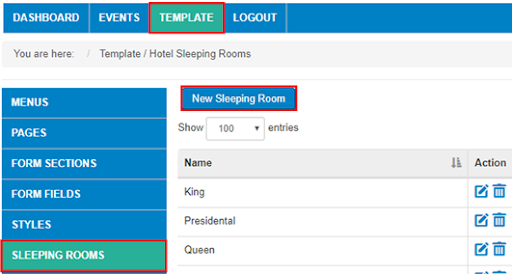
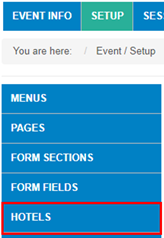
STEP 2: CREATING A DEFAULT HOTEL - After verifying that Room types have been entered at the organization level, you now want to establish the default hotel and any other hotels for your specific event. The system will then manage the ROOM BLOCK and ultimately the ROOMING LISTS based on the inventory you enter in this section. This is done at SETUP -> HOTELS.
SET UP TAB -> HOTELS
Once you have clicked on HOTELS in the menu, you will see a button to add NEW HOTEL
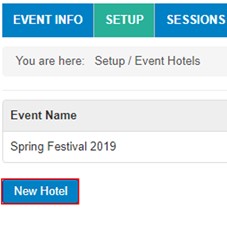
This brings up the below page. You will add Hotel name, address and phone. The additional fields are not necessary unless you have a hotel with a different set of dates on a room block (we will address this scenario later). Note: The hotel name and address is used in confirmation
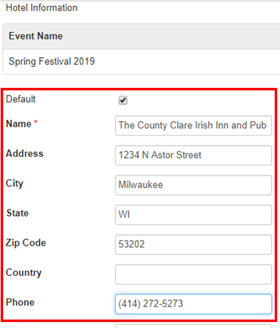
Be sure to SAVE AND CLOSE when you finish entering the hotel information. Now you will be back at the Hotel tab and can see the hotel you just added. Please ensure it is designated DEFAULT if it is your default hotel as this is where the reservations will initially be assigned.
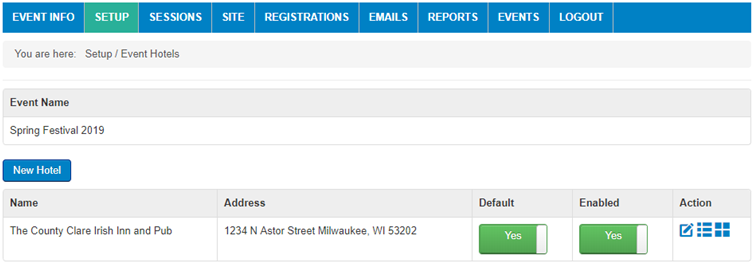
STEP 3: ASSIGNING ROOM TYPES TO THE HOTEL WITH INVENTORY - There is an icon in the ACTION COLUMN in the middle (circled in red) that allows you to add a room type to your newly established hotel.

Once you click on this icon, you can select NEW SLEEPING ROOM to start assigning Room Types to your newly established hotel.
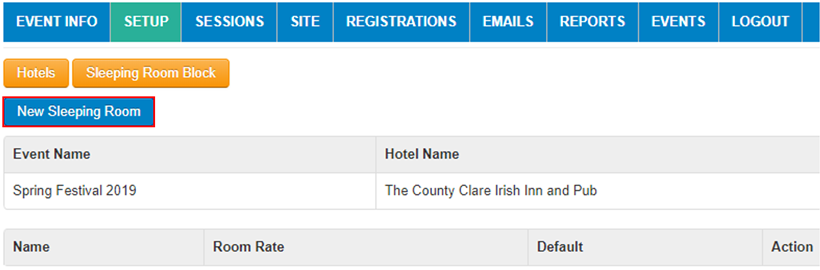
Once you click on New Sleeping Room, you arrive at the below SLEEPING ROOM TYPE page:
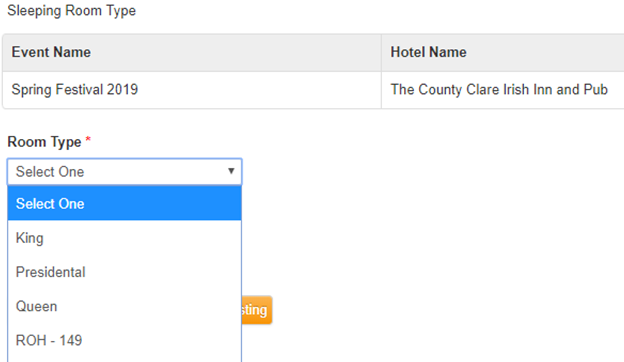
- Select Room Type in Drop Down
- Enter Room Rate in Rate Field (format 179.00)
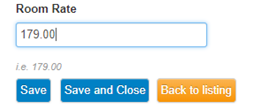
- SAVE and CLOSE
Now your new room will be displayed: Make Sure if this is the room that you want registrations to initially be assigned to, Denote YES on DEFAULT

Entering Inventory to create the Room Block - Select the icon on the far right (circled in red) to now establish the contracted room block

Enter the by night Room Block as it appears on the hotel contract for this Room Type
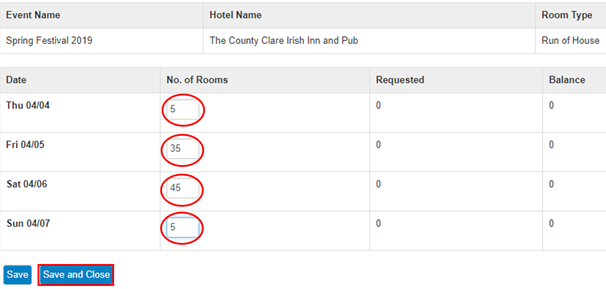
SAVE and CLOSE - now continue adding the contracted block to the rest of the room types you added.
PLEASE NOTE: There should only be ONE DEFAULT HOTEL and ONE DEFAULT ROOM TYPE assigned to that hotel. Any subsequent hotel you add and room types within the added hotels should not be marked as DEFAULT.
You have now finished entering contracted rooms by room type to now manage the Room Block and create Rooming Lists.
STEP 4: Check Registration form to ensure it is set up to move registrations into the Sleeping Room Requests. Make sure the field "HOTEL ROOM NEEDED" is on the form. It should be enabled in the Hotel Accommodations section. This is a critical step to ensure registrations go into the Sleeping Room Requests. There is programming around this field. When a registrant selects 'Yes' for Hotel Room Needed, the system then AND ONLY THEN goes through the waitlist process and adds them to Sleeping Room Requests.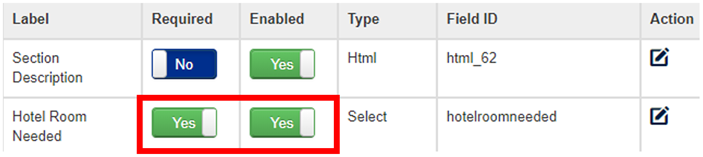
Once this field is set-up, your site is ready to run rooming lists.
To begin the Rooming List process, go to Assigning Room Types and Moving Reservations
Comments
0 comments
Article is closed for comments.