
Invitees can be uploaded within your event. There are several scenarios you can use for invitees. This article addresses them in Step 1. There are some settings that need to be enabled for the invitee feature to work. Follow the below three steps:
STEP 1 - EVENT INFO:
1. If you only want specific guests to be able to register for your event, then you will want to set the REQUIRE INVITATION TO REGISTER field to YES under the EVENT INFO tab. By doing this, only the invitee list you upload can register on your site.
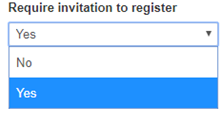
2. You must ALWAYS check the box at the bottom of the EVENT INFO page that says INVITEES in order to have the option to UPLOAD INVITEES: 
Note - you can upload invitees to send out an invitation without requiring an invitation to register (prior step) which means your site is open for anyone to register even though you have a list of invitees that received an invitation.
3. Then SAVE
STEP 2 - CREATE THE INVITEE IMPORT TEMPLATE:
1. Go to INVITEES -> FIELDS: Turn on the fields for the Invitee record you would like to import by enabling YES in import column (the data in these fields will populate onto the registration form):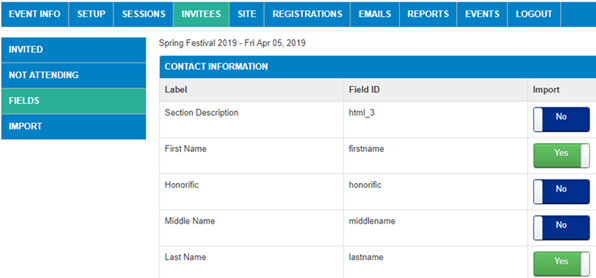
2. Go to INVITEES -> IMPORT: This is where you can download the Import Template. This template will contain the fields you turned on in the previous step. To ensure the columns are named correctly and the file is the proper format, it is best to use this template. Click the Download Import Template button which will create the .csv template file onto your computer.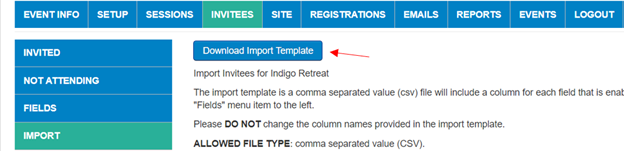
3. Enter the data into the template. Save to Your computer with invitee data.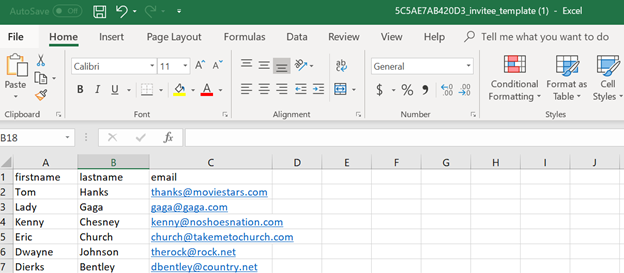
NOTE - (Before importing an invitee list, it is a good practice to open doc in LIBREOFFICE below):
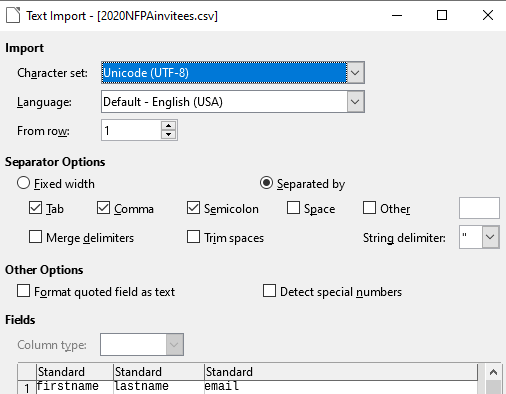
SELECT UNICODE (UTF-8) to ensure there are no special characters to hinder the import process
STEP 3 - UPLOAD INVITEE LIST:
1. Go back to IMPORT menu item, under INVITEES. Click on the CHOOSE FILE button to locate your template you wish to import. Browse for your file and select open. 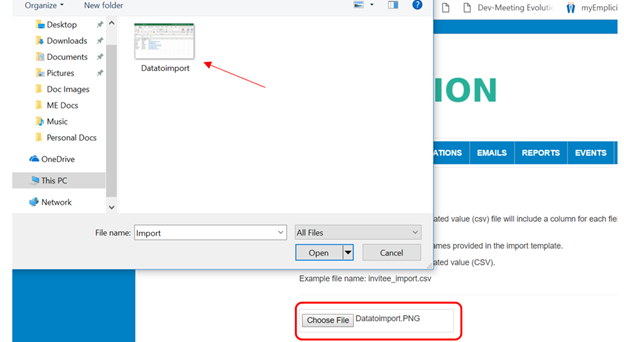
2. Click the Preview Invitee Import - This will show you a summary of what will be imported in preview mode. The first 25 records will show. When ready, click on Import Records.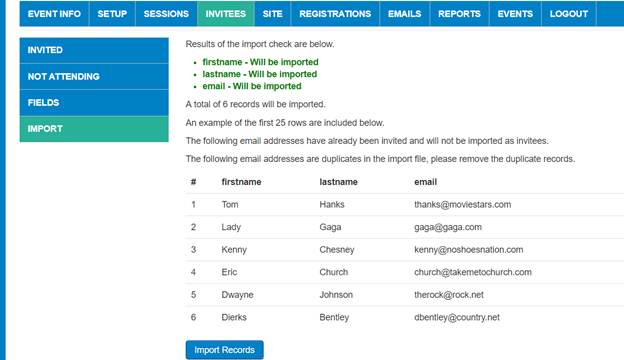
***To SEND AN EMAIL OUT TO YOUR INVITEE LIST - see article CREATING AND SENDING EMAILS
***To ADD ADDITIONAL INVITEES MANUALLY - see article ADDING ADDITIONAL INVITEES
Comments
0 comments
Article is closed for comments.