
Individual invitees are added after the initial set of invitees are imported. Follow Step 1 below to add. Follow Step 2 to email the added invitee(s) if applicable.
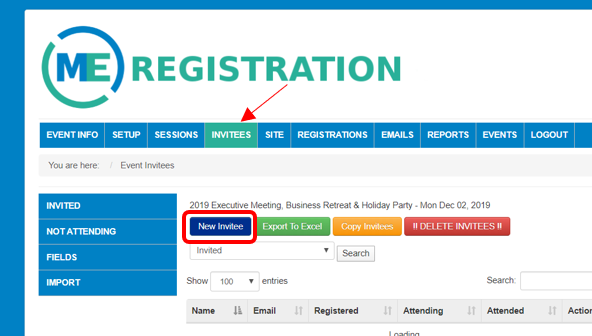
1. ADD INDIVIDUAL INVITEE(s): Click on Invitees and then New Invitee.
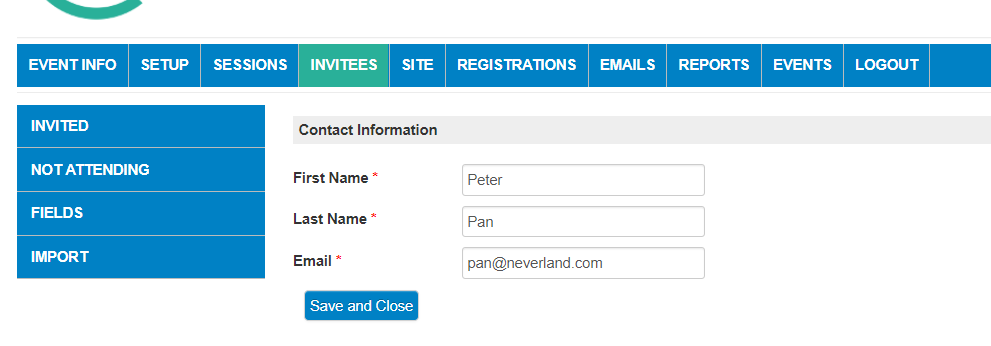
Fill out the information about the Invitee. Please note if these fields are not accurate, they can be changed under the Fields tab on the left hand side. Hit Save and Close when complete. Repeat as many times as you need to add individuals.
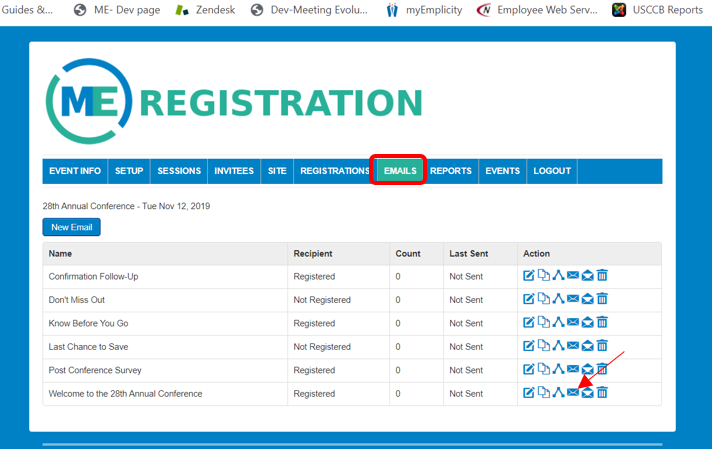
2. SEND INVITEE EMAIL: Click on Emails if you need to send out invitee emails to the new invitee(s) you added. Select the email you wish to send and hit the envelope icon to the right of the email.
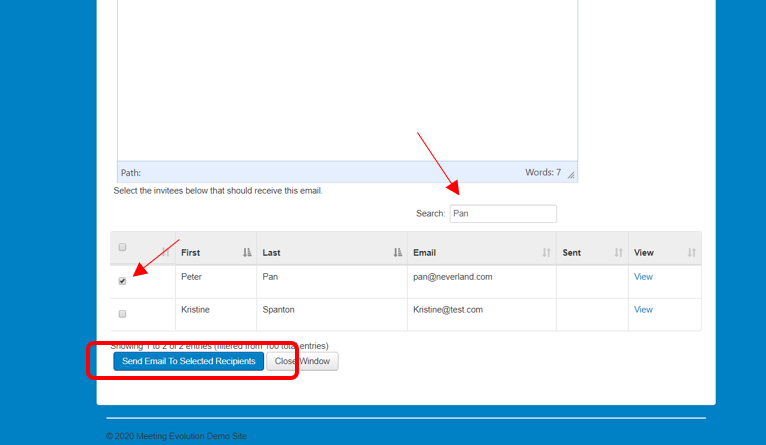
After selecting the envelope, scroll to find your new invitees or use the search bar to look for them. Check the box to the left of the name(s) you wish to send the email to. Hit Send Email to Selected Recipients when ready to send email.
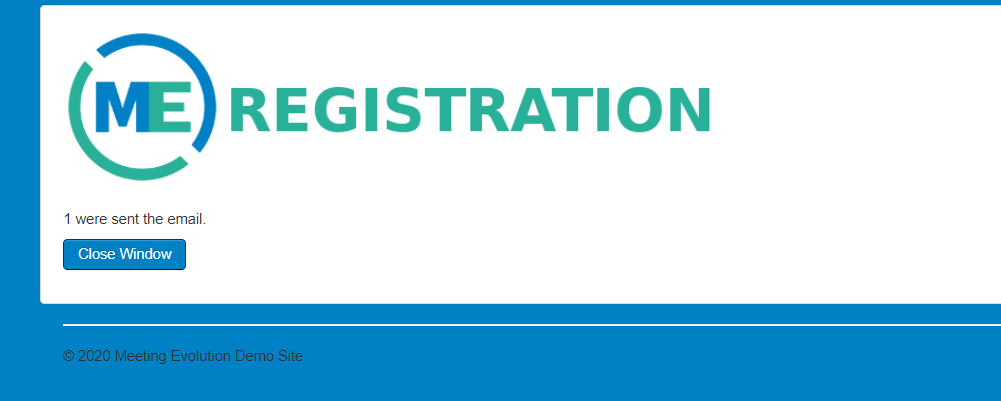
A summary screen will indicate how many emails were sent.
Comments
0 comments
Article is closed for comments.