

Begin by clicking on the RFP Response link included in your RFP email. This will open the RFP Response Home Page. You do not need a login or password to respond to an RFP in Meeting Evolution.
The link will direct you to the RFP Response Home Page. Begin by entering your email address.
If you have previously responded to an RFP in Meeting Evolution, the system will confirm your contact information. Proceed by selecting the Respond to RFP or Decline RFP option.
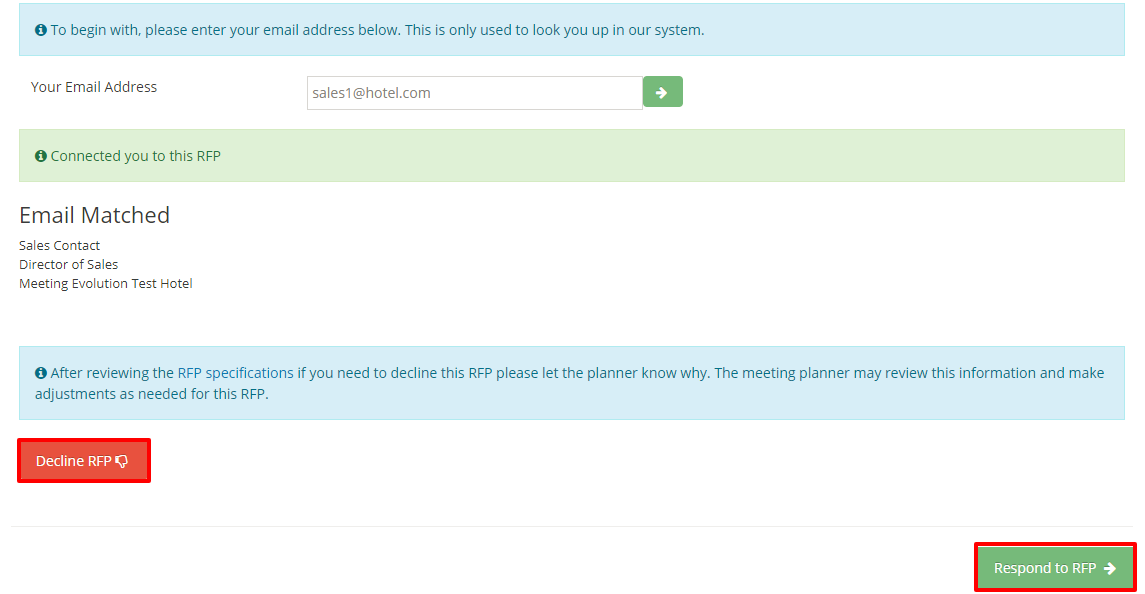
If you have not responded to an RFP in Meeting Evolution before, you will need to provide your contact information including your title and phone number.
Create a password for your account. Passwords must be at least 6 characters long.
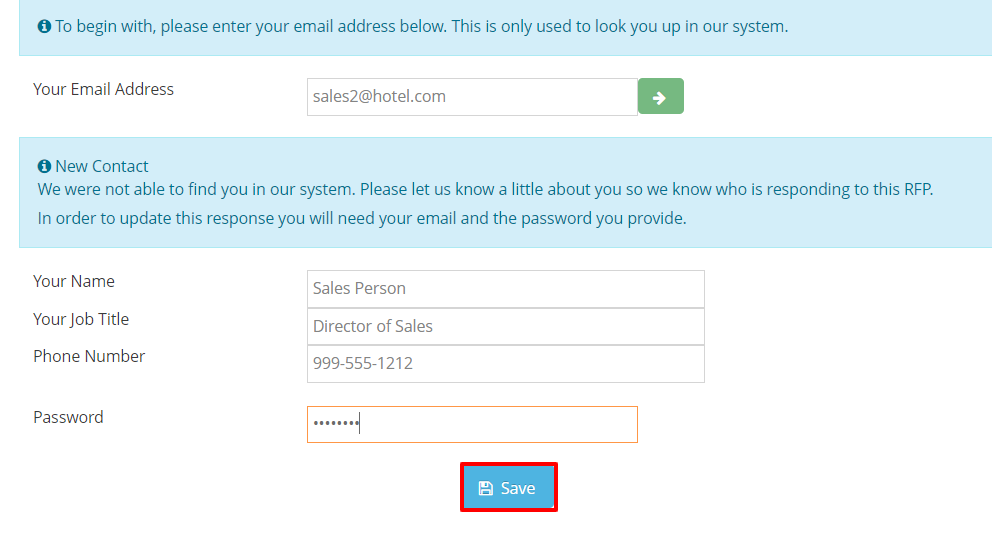
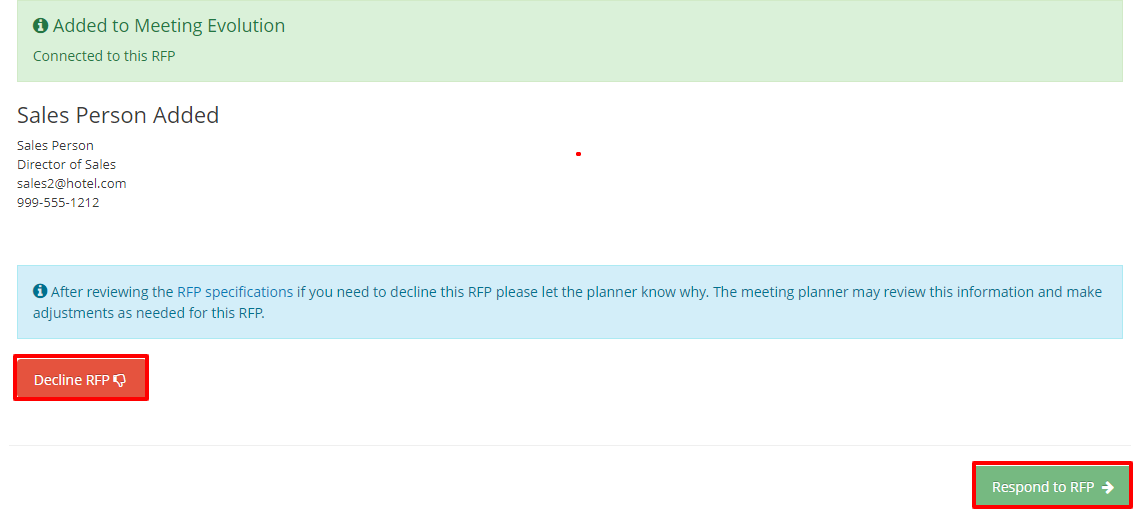
Your user name and password will be saved. You will need to login to Meeting Evolution to edit your response or access other system features in the future.
Proceed by selecting the Respond to RFP or Decline RFP option.
Proceed to Step 2: Respond to RFP Questions
OR
Proceed to How to Decline an RFP
Comments
0 comments
Article is closed for comments.