
You will need to log in to Meeting Evolution to edit your responses.
Refer to How Do I Log in to Meeting Evolution if you need to reset your password.
This article contains the following topics:
- Edit Your RFP Response
- Edit Room Rates or Available Dates
- Edit Meeting Room Assignments
- Edit an RFP Response Submitted by a Colleague
Your RFP responses will be listed on the home page.
Select Edit Response to view or edit your response.

Each section of the response includes an Edit button for that section.
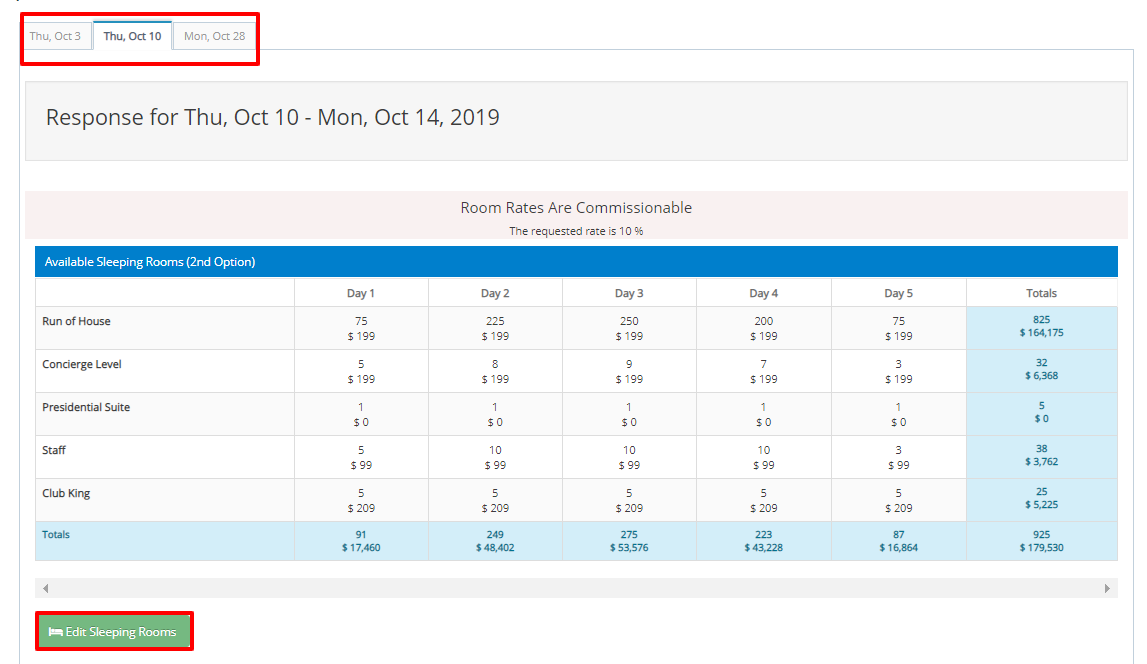
Your sleeping room rate response is available for review. Click on the Date Tabs at the top of the room block section to see information for each set of dates.
Select Edit Sleeping Rooms if you need to update this information.
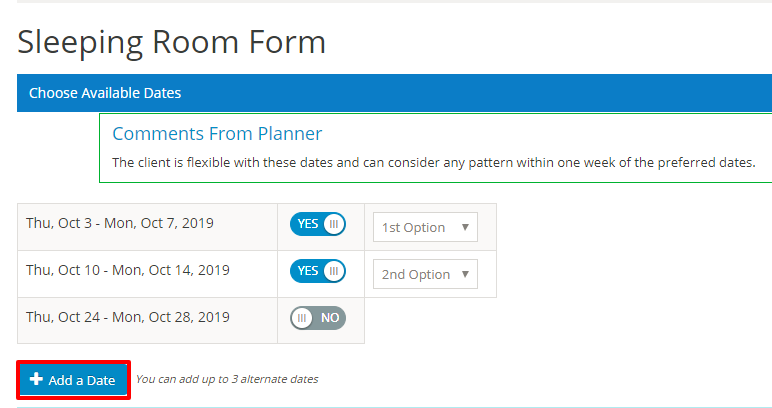
Propose Alternate Dates
If the planner has allowed alternate dates on the RFP, you can propose up to 3 additional dates by selecting Add a Date in the Available Dates section.
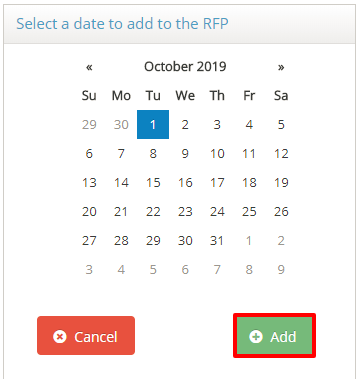
A calendar will appear to select Day 1 of the alternate dates and Add to the response.
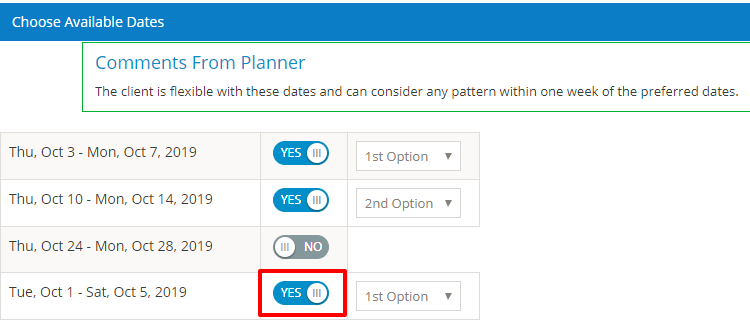
The alternate dates will appear in the Available Dates section and an additional tab will appear in the Room Rate section to provide rate information.
Note, if the planner has indicated that the dates are not flexible you will not see the option to Add a Date.
Edit Meeting Room Assignments
Your meeting room assignments are available for review. Select Edit Meeting Rooms at the bottom of the agenda if you need to edit this information.
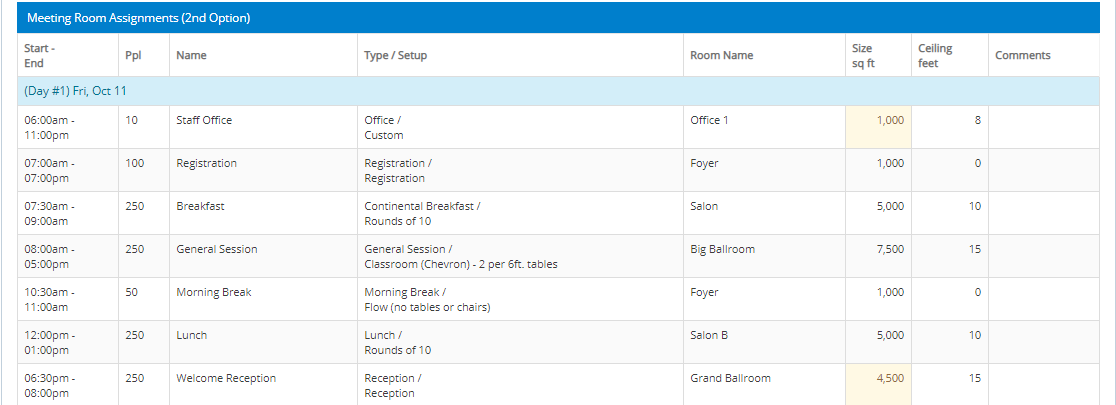

Select Previous Date or Next Date to review room assignments for additional dates.
Edit an RFP Response Submitted by a Colleague
In order to edit a response submitted by a colleague, you first need to take ownership of the RFP.
Locate the RFP on the Responded To listing and use the Take button to make yourself the new contact.

Return to the My Responses listing and you will have access to Edit Response.
Comments
0 comments
Article is closed for comments.