

Step 4 of the RFP Response provides meeting space information.
This article includes the following topics:
- Choose Available Dates
- Enter Meeting Room Assignments
- Add a New Meeting Room Name
- Copy Room Names for Repeating Functions
- Copy All Meeting Room Assignments to Additional Dates
The dates selected as Available in the Sleeping Rooms section will be copied to the Meeting Space section.
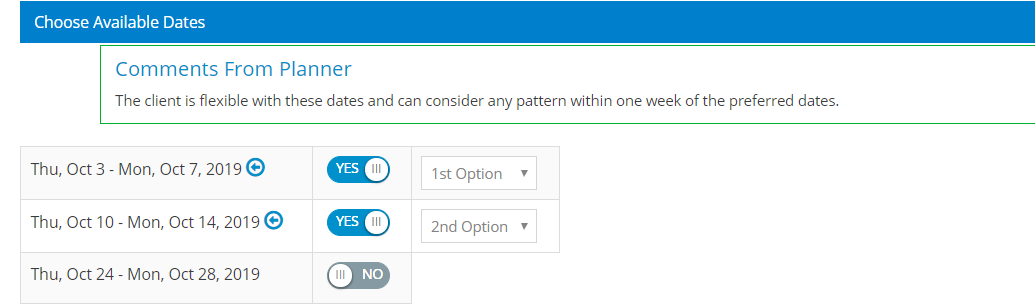
Enter Meeting Room Assignments
A new tab will appear for each set of dates with availability. Each tab contains a grid to enter the meeting room names. The Room Name and Actual Size (square feet or square meters) are required for each function. Ceiling Height and Comments are optional.
All meeting room names from previous responses will be available to select from the drop down list.
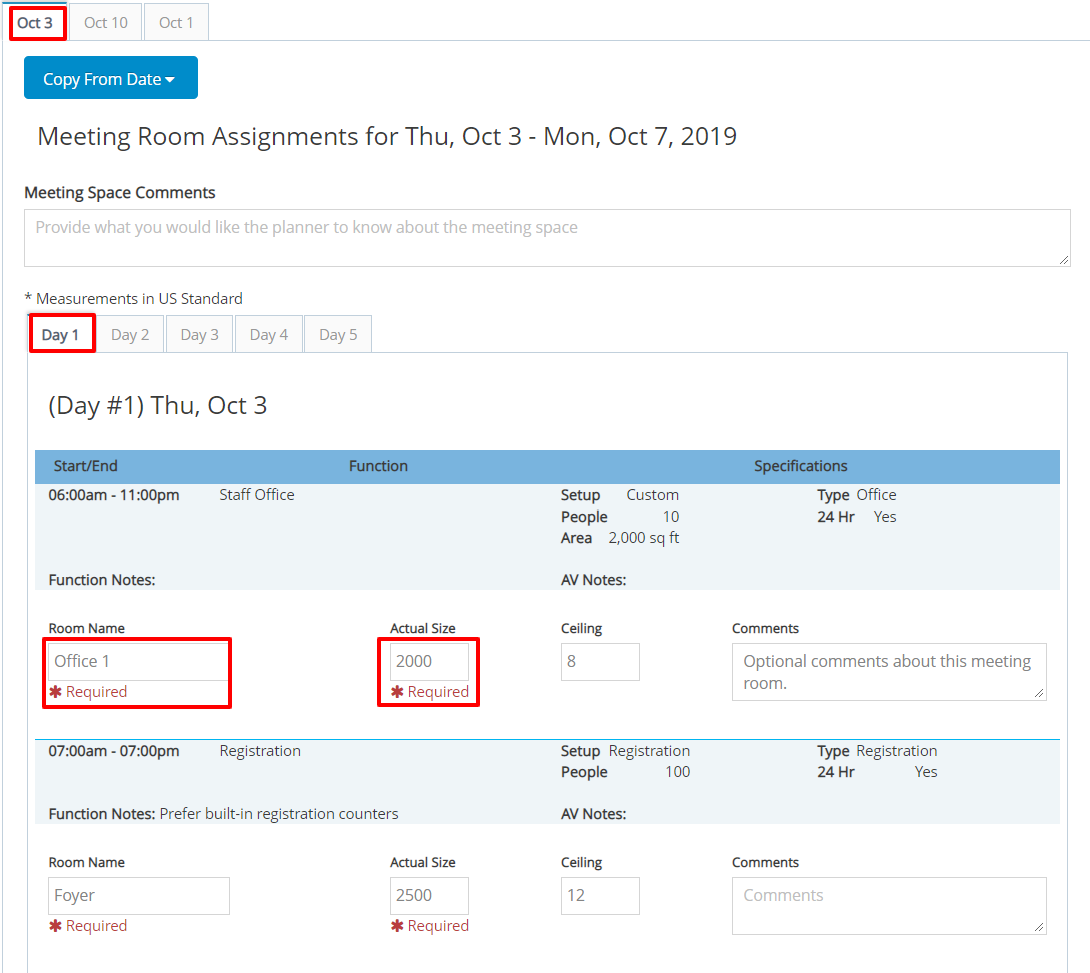
Type a new room name and the size (square feet or square meters) to add it to the listing, ceiling height and comments are optional. This entry will be available in the drop down list for selection in the next agenda item.
Copy Room Names for Repeating Functions
When a function is scheduled to repeat over multiple days (for example, Registration Desk or Staff Office), the room name will be copied automatically to the other days within the current date range and can be edited if needed.
Copy All Meeting Room Assignments for Additional Dates
After completing the room assignments for the first set of dates, the information can be copied to other date ranges. Select Copy From in the Meeting Space tab and select the dates to be copied.
All room assignments, room size, ceiling height and comments information will be copied and can be edited as needed.
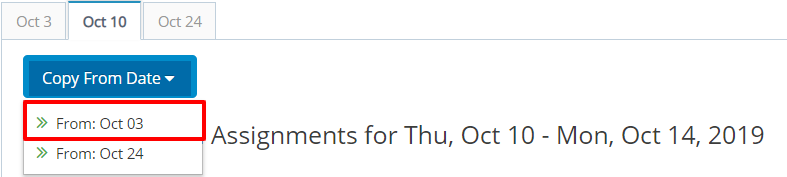
Meeting room names are required for all available date ranges.
Procced to Step 5: Review and Submit Response when complete.
Comments
0 comments
Article is closed for comments.