

The final step is review your response before submitting. You can also add an attachment to your response.
This article will cover the following topics:
- Review/Edit Questions
- Review/Edit Sleeping Room Rates
- Review/Edit Meeting Room Assignments
- Upload an Attachment
- Submit Response
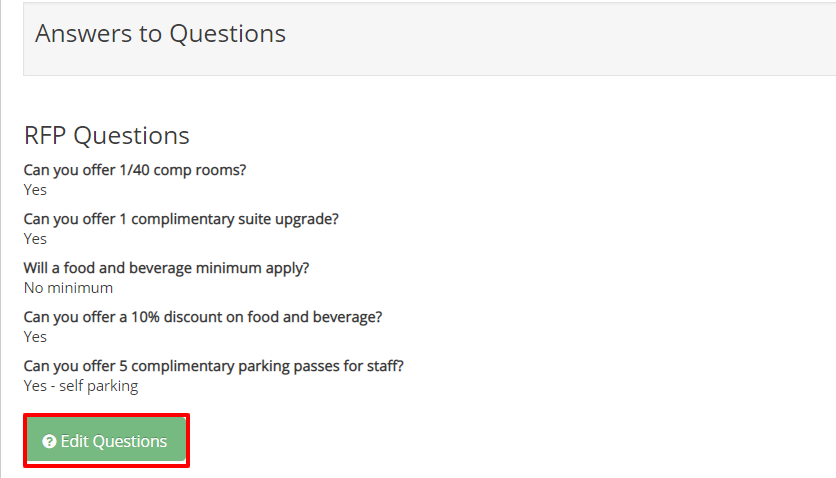
Your responses to the RFP Questions are available for review. Select Edit Questions if you need to update your answers.
Review/Edit Sleeping Room Rates
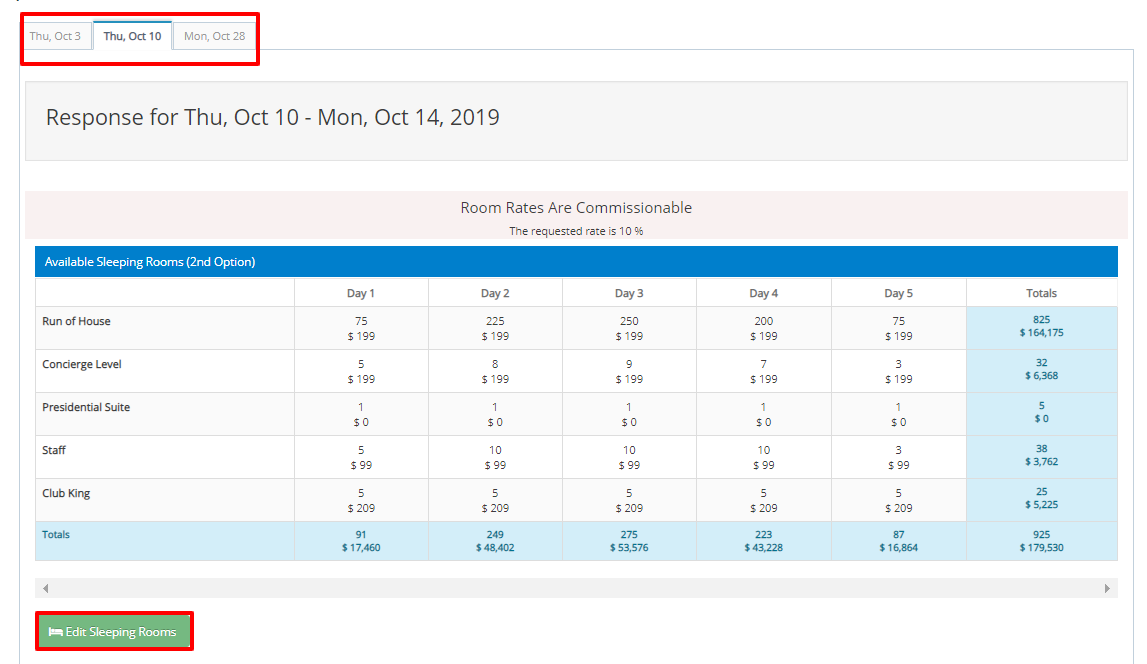
Your sleeping room rate response is available for review. Click on the Date Tabs at the top of the room block section to see information for each set of dates.
Select Edit Sleeping Rooms if you need to update this information.
Review/Edit Meeting Room Assignments
Your meeting room assignments are available for review. Select Edit Meeting Rooms at the bottom of the agenda if you need to edit this information.
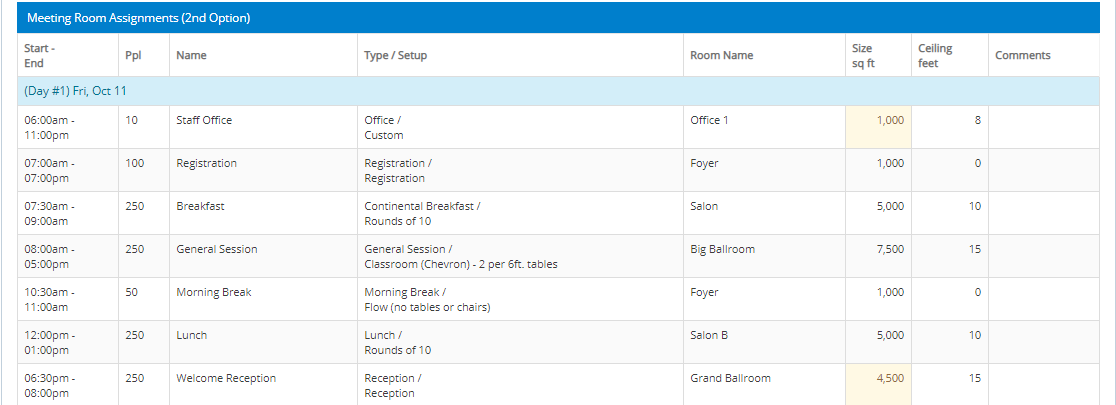

Select Previous Date or Next Date to review room assignments for additional dates.
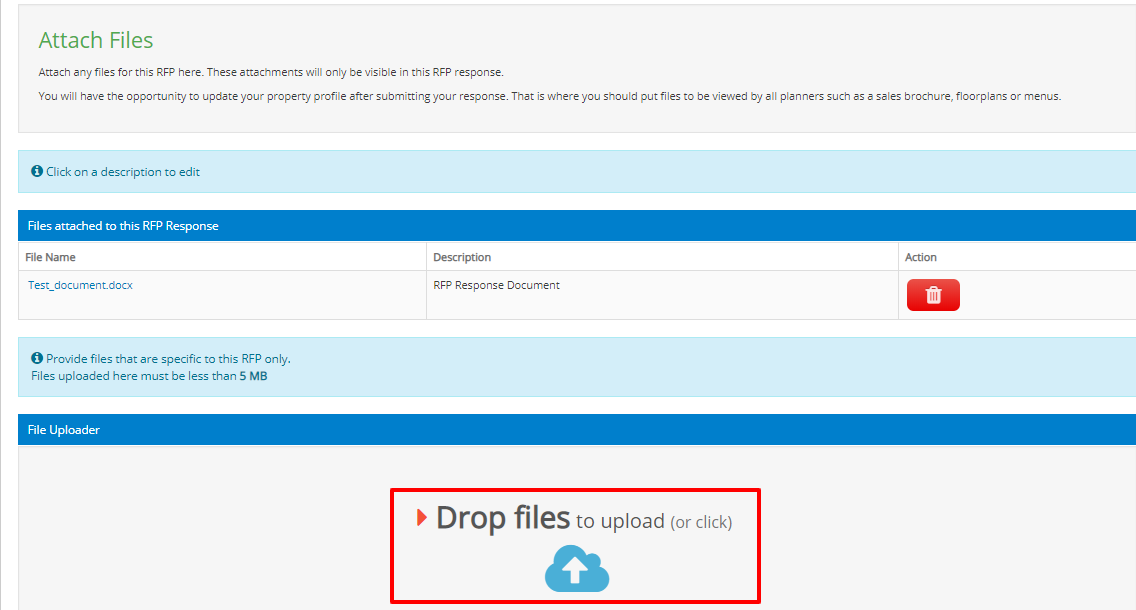
You can upload an attachment specific to this RFP response. These attachments will only be visible in this RFP response.
Attachments for all planners to view such as sales brochures, floorplans, or menus should be uploaded to property profile. You will have the opportunity to update your property profile after submitting the response.
To attach a file, click on the Drop Files icon and select your attachment(s).
Scroll to the bottom of the page and select Submit Response when complete.
You will receive a confirmation email. A notification email will also be sent to everyone who initially received the RFP.
Proceed to the Thank You page to download or print your response or to review your property profile.
Comments
0 comments
Article is closed for comments.