
Instructions for viewing and selecting RFP Responses.
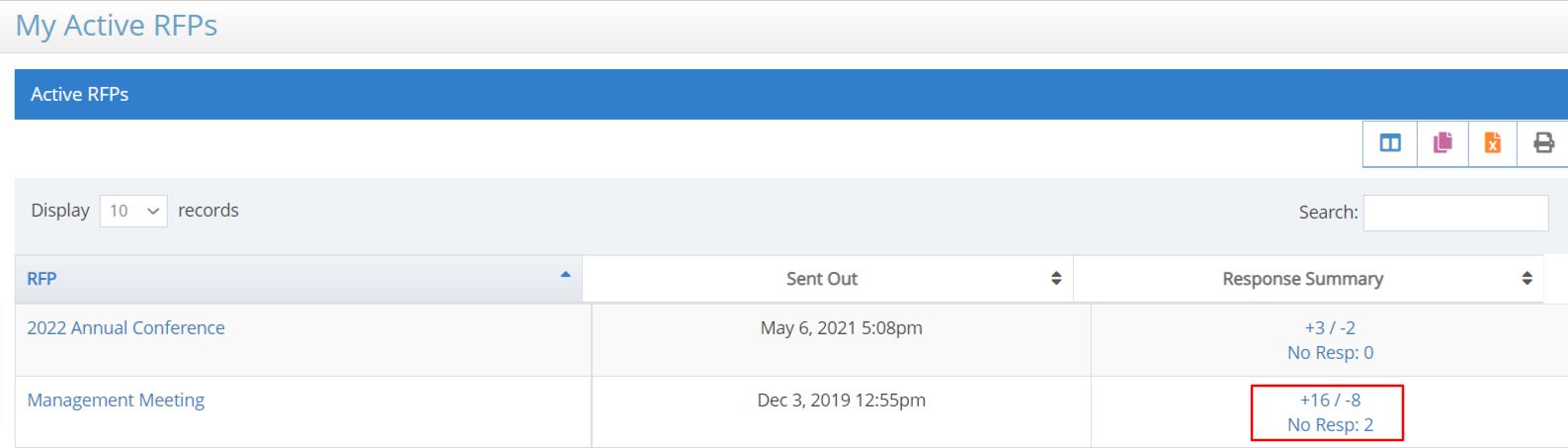
From the home page, select the number of current responses in the Response Summary section to view RFP responses.
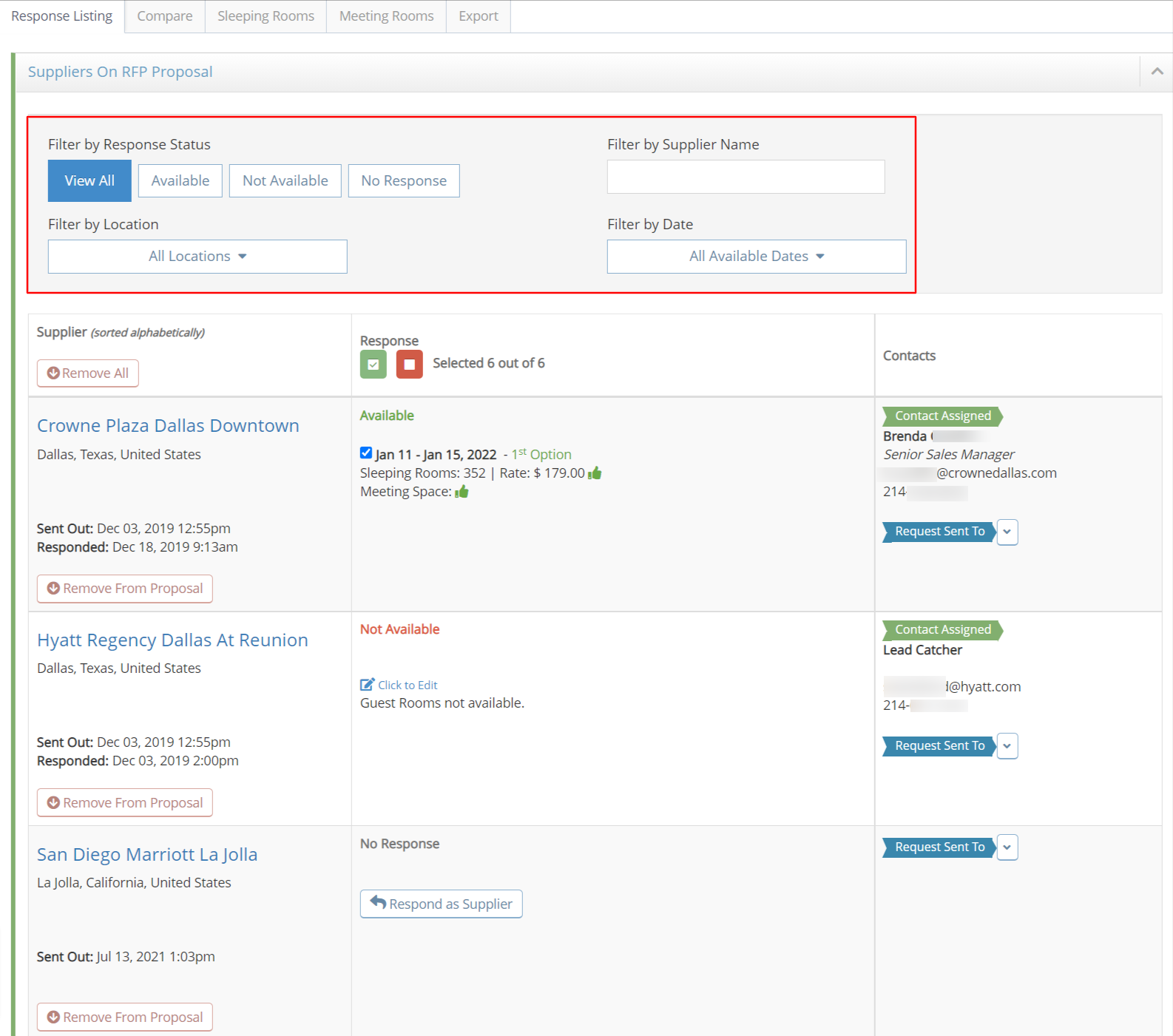
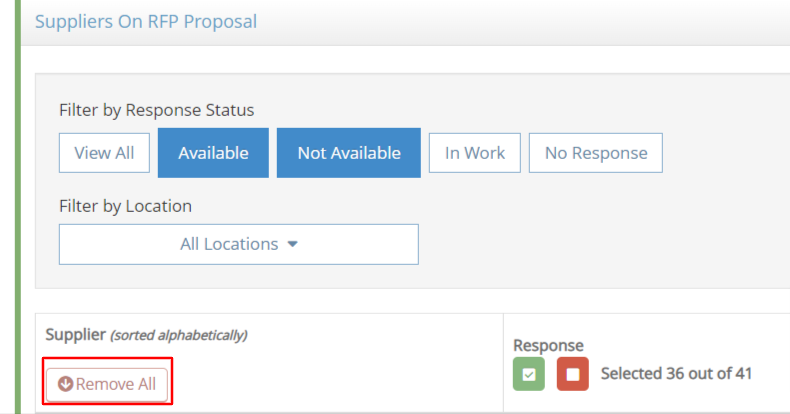
Filter by Response Type by selecting Available, Not Available, In Work or No Response options.
Filter by Location or by Date using the drop down listings.
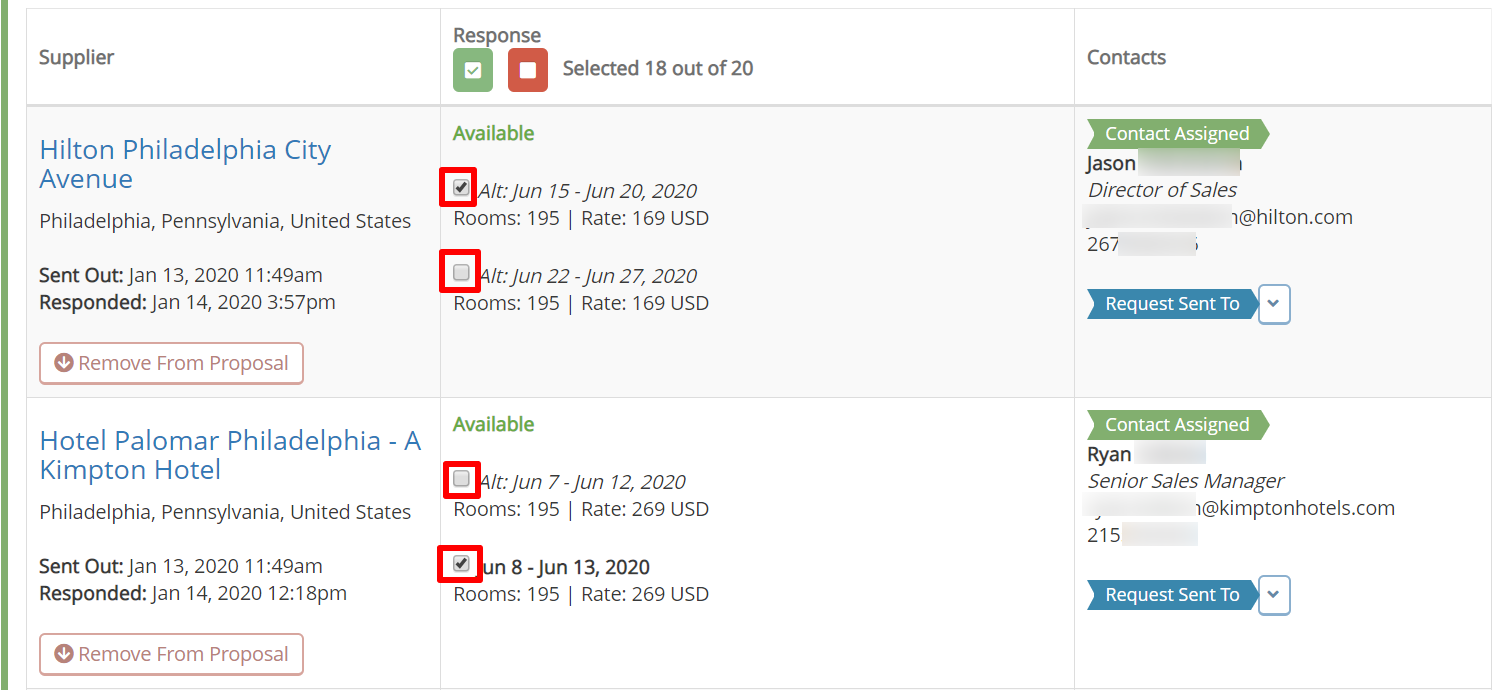
Each available response date will have a check box to select or un-select it. By default, all available dates will be selected. Only the selected dates will be included in the comparison reports and export.
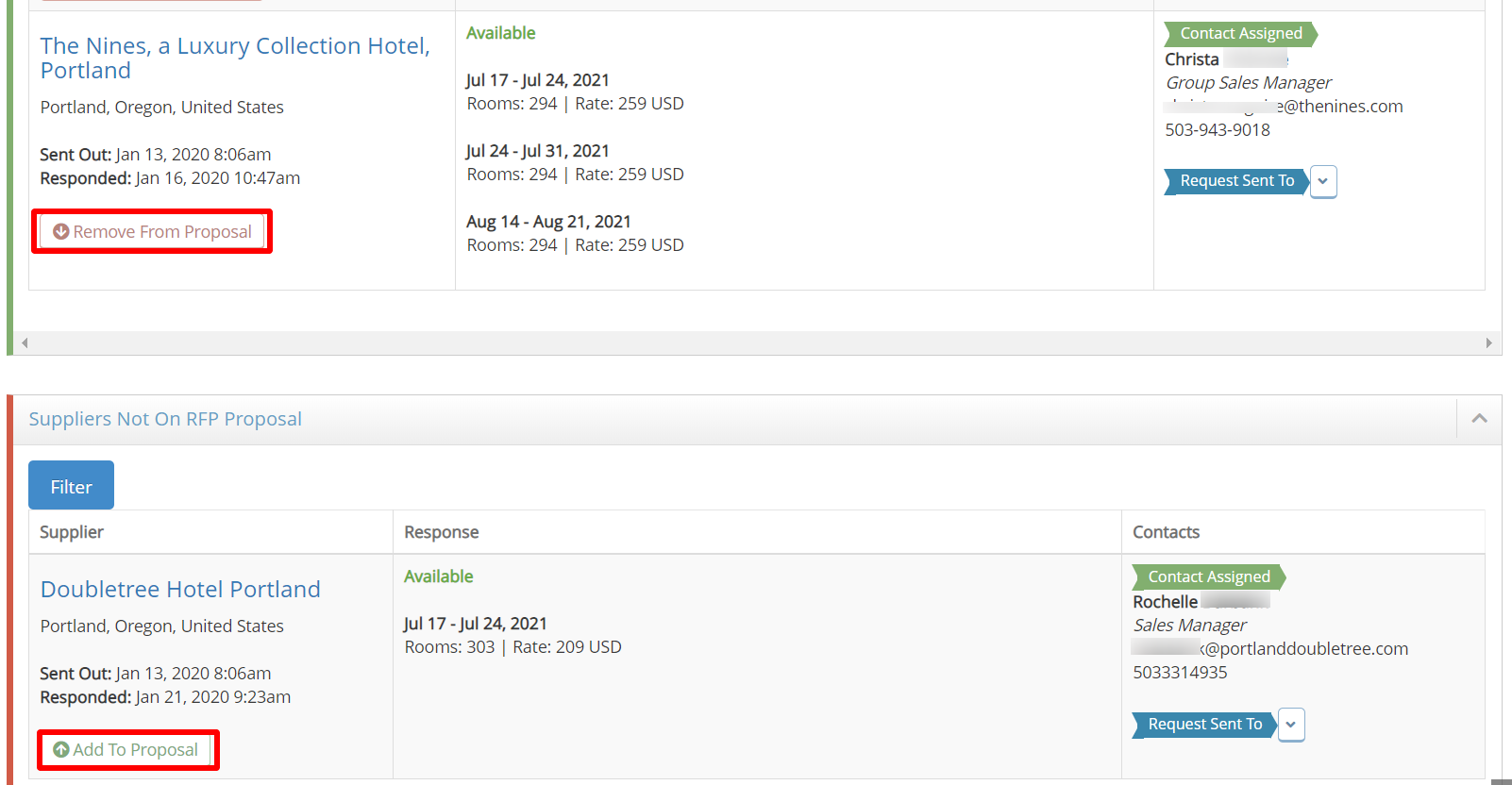
Move Responses On Proposal or Off Proposal
Manage responses with the Add to Proposal and Remove from Proposal options.
Responses in the Suppliers On Proposal section with a green sidebar will be included in the Export.
Responses in the Suppliers Not On Proposal section with a red sidebar will not be included in the Export.
Use the Remove All or Add All options to remove or add all selected suppliers.
To remove a location or date range from the proposal, use the filter to select all responses to be removed and select Remove All.
After selecting the responses to be included in your report, refer to
Comments
0 comments
Article is closed for comments.