
Instructions for viewing and exporting room block and meeting space reports.
- Sleeping Rooms - Detailed Room Block Comparison
- Sleeping Rooms - Room Block Daily Summary
- Meeting Room Assignments
Begin by selecting the RFP Name from the Home Page and select Responses from the left side toolbar.
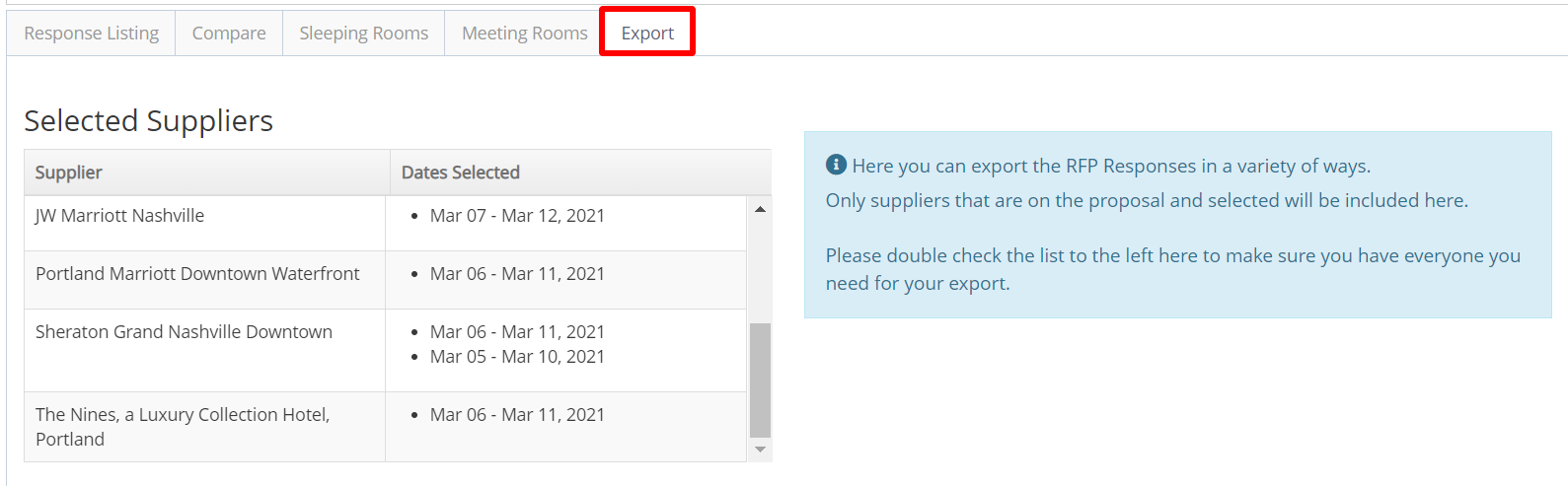
Use the Response Listing tab to select the properties to be included in your export. Refer to RFP Response Listing for instructions on selecting responses and moving responses On Proposal or Off Proposal.
Select the Export tab. All Available responses to be exported are shown in the Selected Suppliers box.
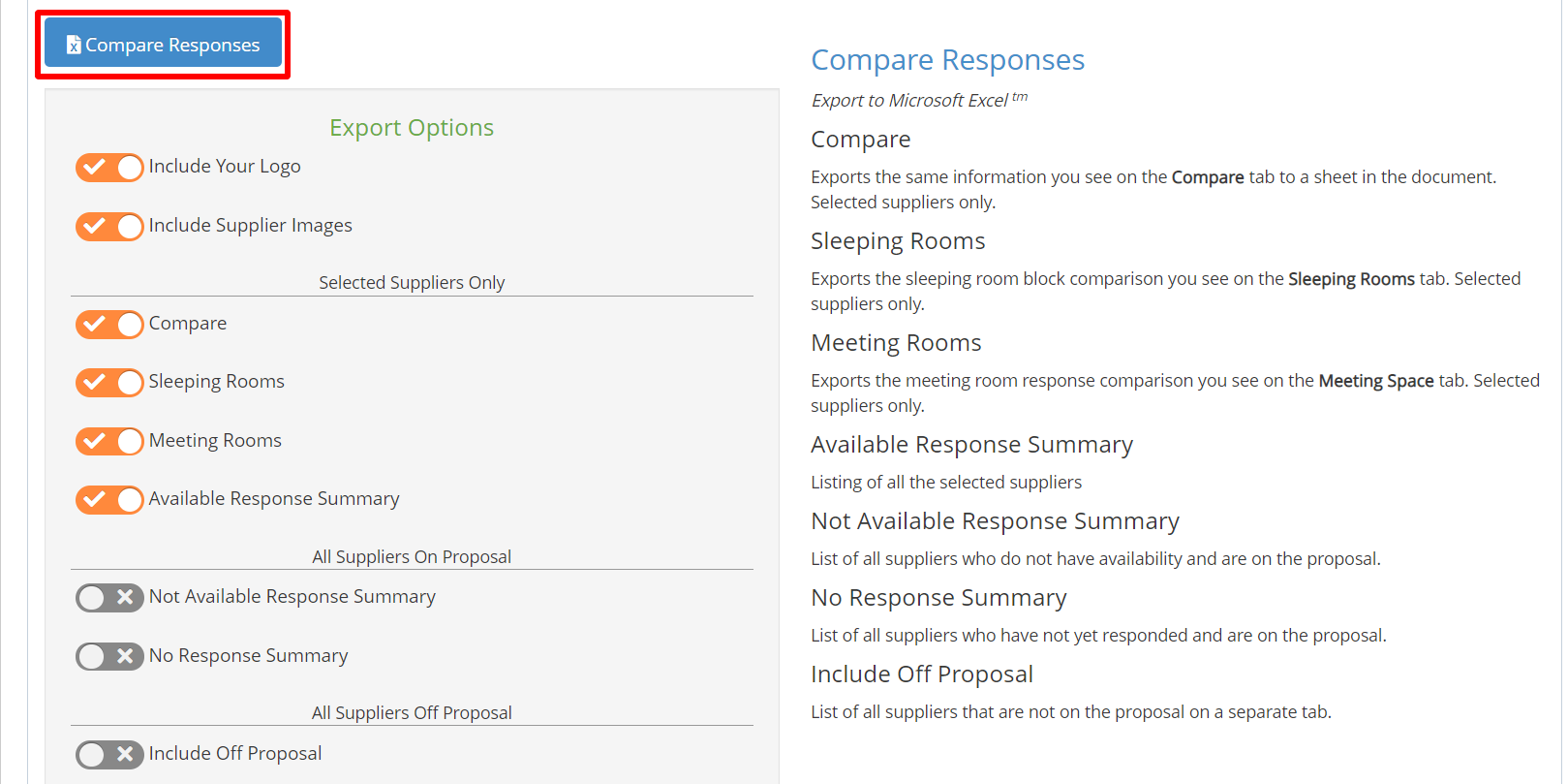
In the Compare Responses report section, select the reports you want to include in your export. Then select Compare Responses to download your report in Excel.
Save your report and open it in Excel. A spreadsheet tab is available for each page of the report.
Sleeping Rooms - Detailed Room Block Comparison
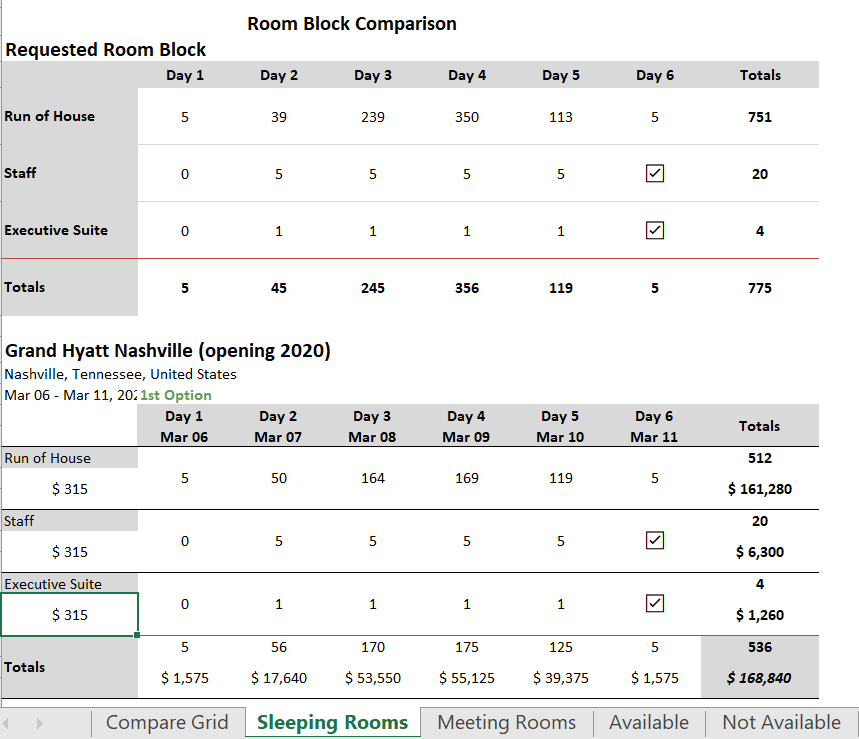
The Sleeping Rooms tab of the spreadsheet will include the Detailed Room Block Comparison and the Room Block Daily Summary.
Each property's detailed room block response is shown for each available date.
Sleeping Rooms - Room Block Daily Summary
Scroll down the page to view the Room Block Daily Summary. Responses are grouped by date to show the number of rooms available per night.
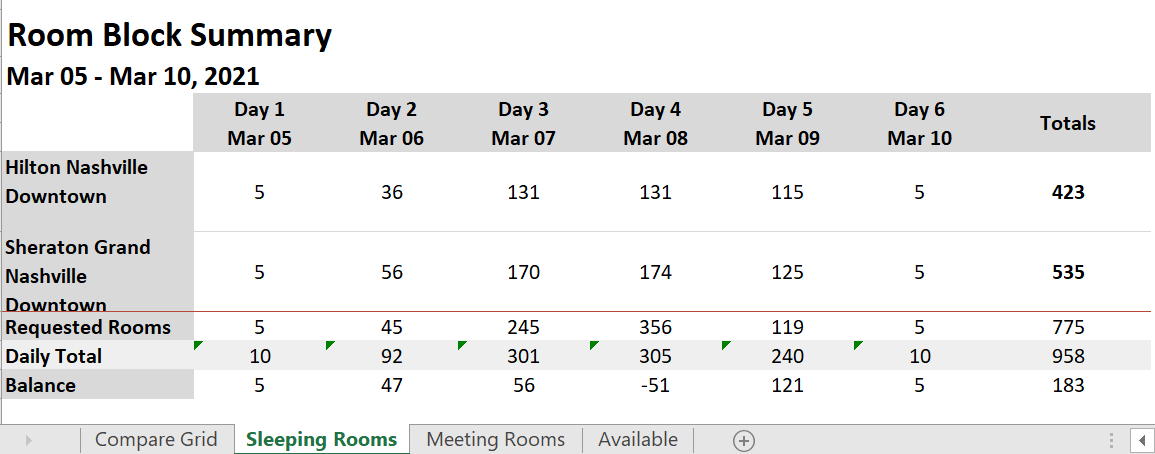
If you will need multiple properties to fill the room block, the Daily Total row shows the total number of rooms offered for each night and the Balance row shows if there are enough rooms to fill the block.
The Meeting Rooms tab of the spreadsheet will display the room assignments for each property.
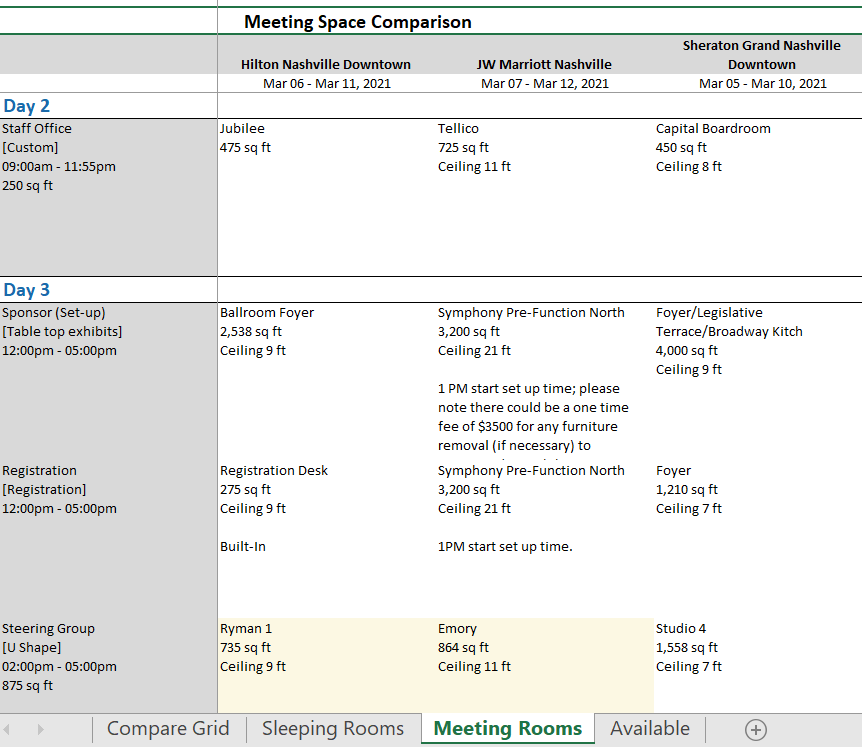
If you did not request meeting room names in the RFP response, this tab will not be available.
Please send all feedback to support@meetingevolution.net
Comments
0 comments
Article is closed for comments.