
It is not difficult to Upload an image in the Registration Editor. This can be done on a Registration Tab or Page, in an Email you are creating, or even on the Registration Form. Basically anywhere you have access to the "Rich Text Editor", you have the ability to upload an image. Follow these 7 basic steps:
STEP 1: Put your cursor inside the Editor (where you want the image) and click on the IMAGE ICON -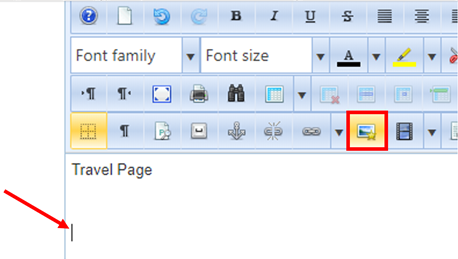
STEP 2: The rest is done in this "Image Manager", click on UPLOAD - 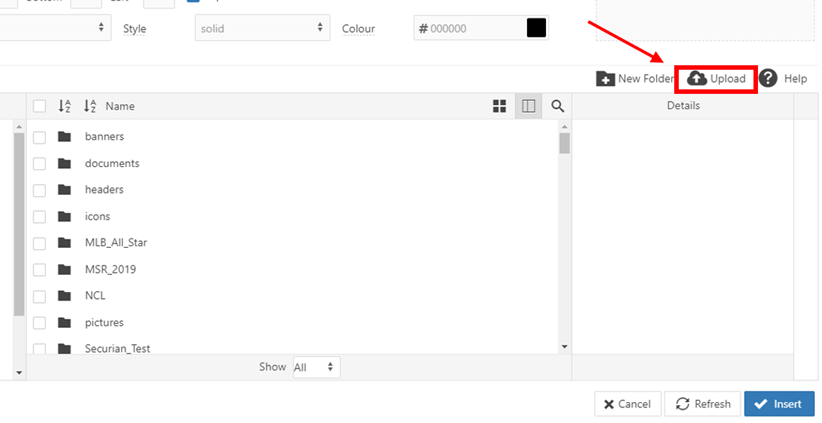
STEP 3: Now within this UPLOAD window, click on BROWSE to search your computer file for the image- 
STEP 4: Double-click on the Image File you would like to upload - 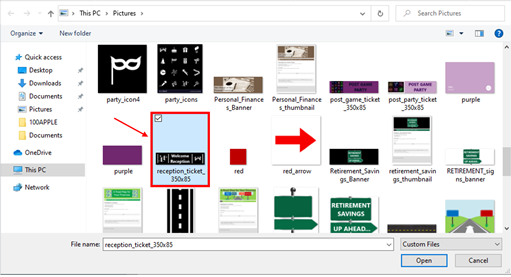
STEP 5: Now that Image File is showing available to upload in the Upload Window, click on UPLOAD - 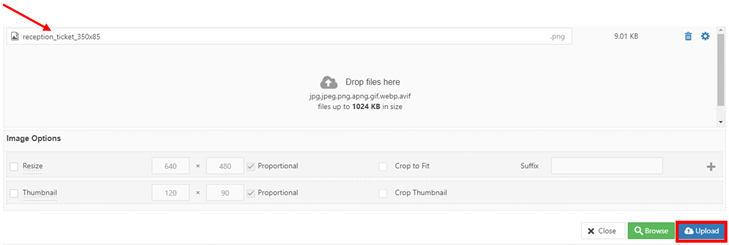
STEP 6: Here is the important part, the editor needs the URL of the image to INSERT it. You need to click on the BOLDED NAME of your IMAGE FILE so that it fills in the URL field where the red arrow indicates below, once you see that URL filled in, you can click on INSERT-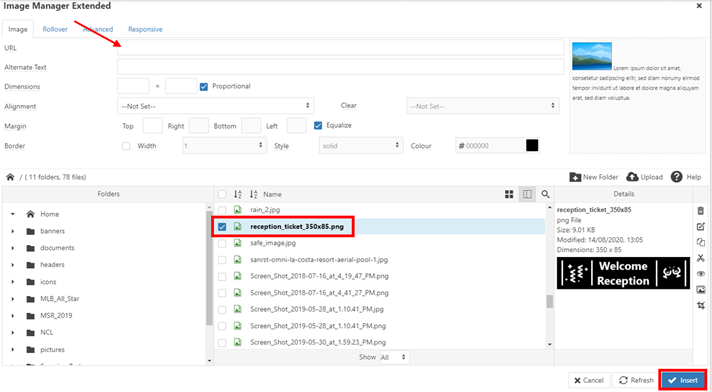
STEP 7: Where your cursor was in the Editor, should now display the image, be sure to SAVE and CLOSE-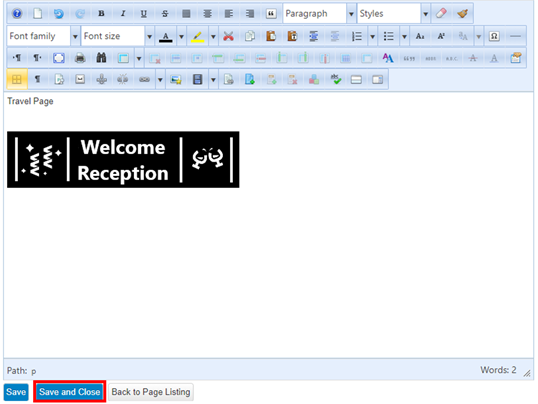
Comments
0 comments
Article is closed for comments.